1. User Settings Page
The settings page of a user makes it possible to edit the settings. It displays the following tabs:
-
Explorer Filters - See Explorer Filters
-
Security - See Security User Settings
1.1. Explorer Filters
The model explorer view is filter according to the criteria defined in these settings. Each user can have its own settings, and they all inherit the server default settings if they don’t explicitly change these settings.
The server administrator can edit the server default settings and reload these default settings so that they become active for every user that has not explicitly configured their own settings.
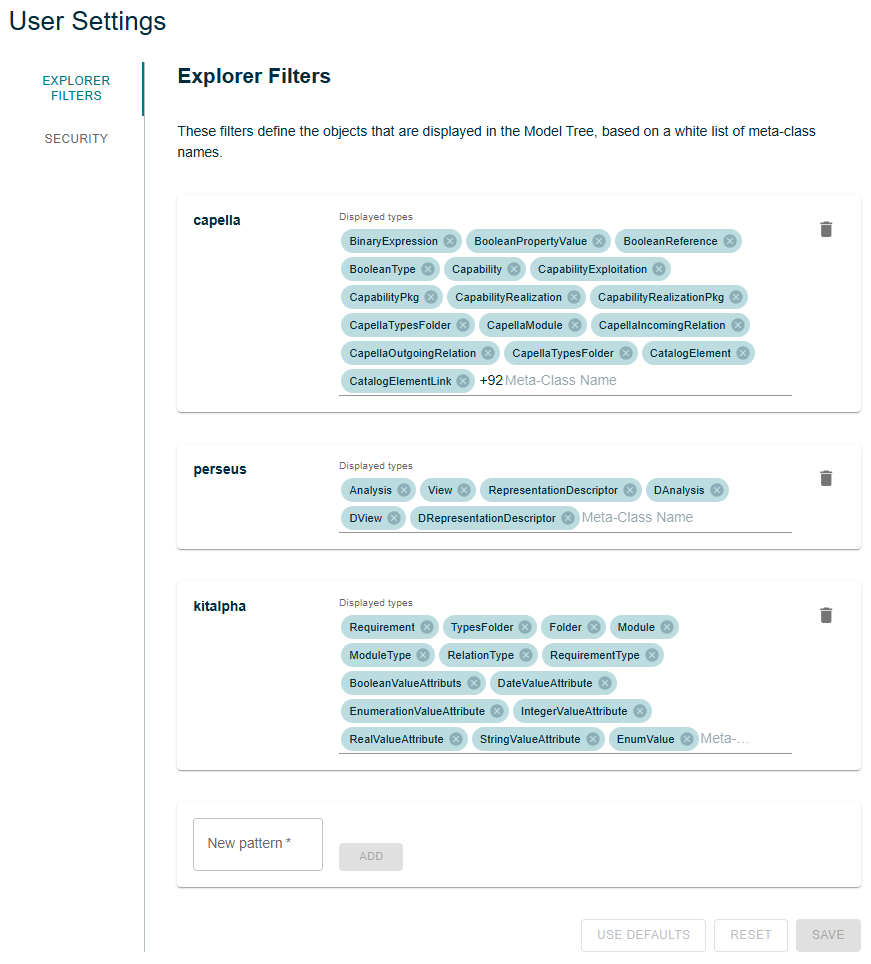
The settings are based on two simple concepts:
- Meta-Model Pattern
-
A String that will be used to match meta-models. Each meta-model whose
NsURIcontains the pattern will match. - Meta-Class Name
-
A String that identifies a meta-class by its name.
To be displayed in the Model Explorer, an object must have a type (i.e. a meta-class) that complies with the following constraints:
-
The meta-class name must be among those present in the settings.
-
The meta-class' meta-model must match the associated pattern.
For example, the default settings define two patterns:
-
capella: This pattern matches all the Capella meta-models, since their meta-modelNsURIall contain the Stringcapella. For example, The Logical Architecture meta-model in Capella 6 has the followingNsURI:http://www.polarsys.org/capella/core/la/6.0.0. -
perseus: This pattern matches all the Publication For Capella meta-models.
The list of meta-classes to display in the explorer can be edited for each pattern. The editor offers completion features to facilitate the selection of the relevant type.
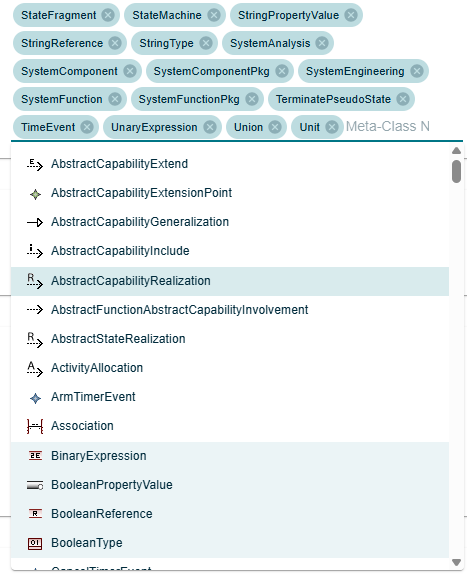
It is also possible to add or delete a pattern. The bottom text Field labeled 'New Pattern' can be used to enter the name of a new pattern to add. Then, the user must click on the 'Add' button.
The addition of a pattern is only possible if the new pattern does not overlap with an existing pattern.
For example, trying to add a pattern cap when there already is a pattern capella is forbidden because any meta-model that matches capella would also match cap.
|
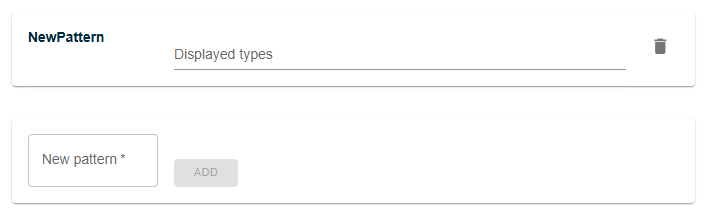
A pattern and the associated list of meta-class names can be deleted from the settings by clicking on the delete icon of the corresponding panel.
Three buttons are available at the bottom of the page:
-
Use Defaults: This button is only active if the current user’s settings is not the server defaults. Clicking on this button will erase the user’s settings and reset them to the server’s defaults. -
Reset: This button is only active if some modification has been made to the settings. Clicking on this button will reset the form to its saved state, discarding any change that was made by the user in the settings. The settings will not be changed. -
Save: This button is only active if some modification has been made to the settings. Clicking on this button will persist the user’s settings, so that they will be taken into account afterwards.
1.1.1. Explorer Filters Default Settings
The default settings of the Explorer Filters can be edited by the administrator in an external file.
This file must be referred to by URL in the perseus.metaclass.filter.default property that must be set in the server’s application.properties settings file.
perseus.metaclass.filter.default:file:///d:/metaclass-filter.json
After this file has been modified, it must be reloaded for these changes to be taken into account on the server.
Only the Server Administrator can reload this settings file.
It can be achieved from the User Settings page of the administrator account, by clicking on the 'Reload Defaults' button. This button is only visible by Server Administrators.

1.2. Security User Settings
The Security tab provides users with means to understand and act on their security authorizations.
It lists all active authorizations, either:
-
Outgoing Authorizations: the active authorizations granting Publication For Capella access to third party applications.
-
Incoming Authorization: the active authorizations granting third party applications access to Publication For Capella.
Each of those authorizations can be revoked at any time using the delete action.
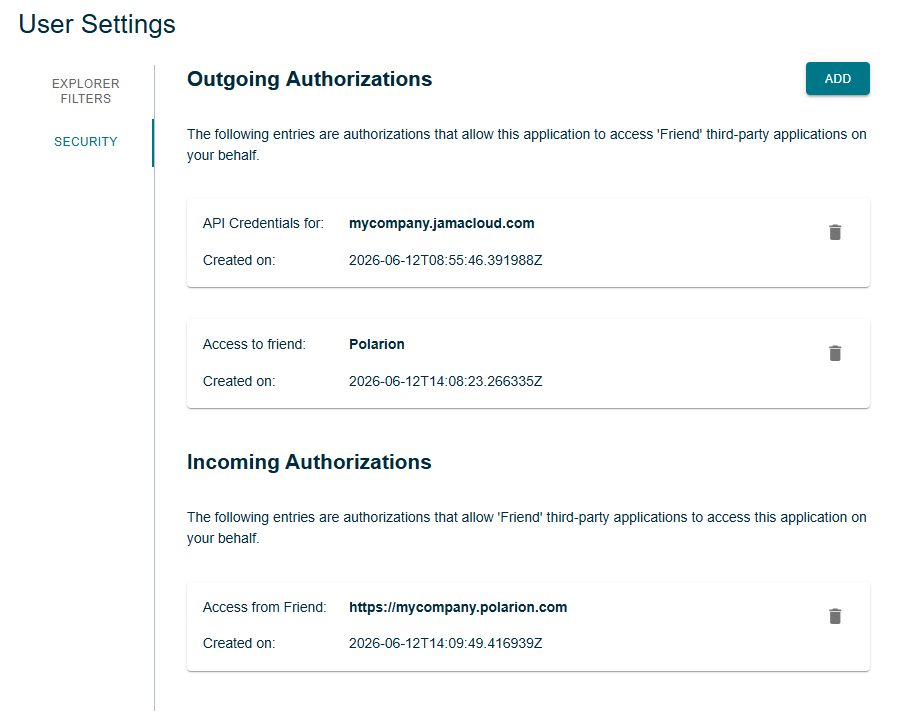
The release 2026.7 of Publication For Capella introduces the capability to create some outgoing authorizations directly from the 'Security Settings' page.
To do so, click on 'Add' in the panel 'Outgoing Authorizations'.
Then select a Friend server for which credentials need to be created in the combo box.
This combo box will contain one entry per friend server registered on the server for which there is a supported kind of authentication mechanism that can be created manually.
-
If the Friend is a Polarion server, the form supports registering a Personal Access Token.
-
If the Friend is a Jama Connect server, the form supports registering an API key.
-
If the Friend is a CodeBeamer server, the form supports registering HTTP Basic credentials. The Realm field should be filled in with
CodeBeamer.
| Other types of credentials exist, but they cannot be created this way. Hence, they can only be seen and deleted on this page. |
1.2.1. Registering a Polarion Personal Access Token
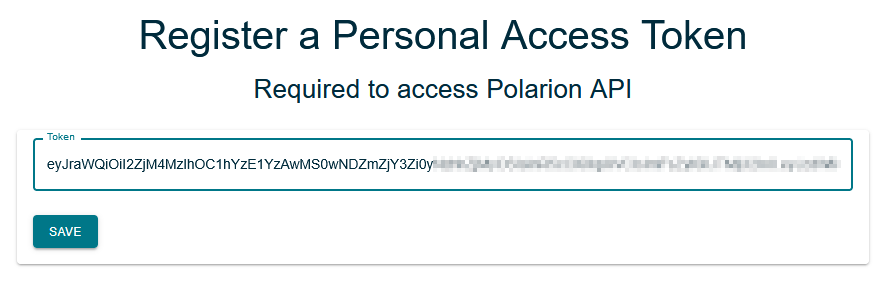
Enter a Personal Access Token created in Polarion.
| Refer to [polarion-create-pat] for details on creating a Personal Access Token in Polarion. |
1.2.2. Registering a Jama Connect API Key
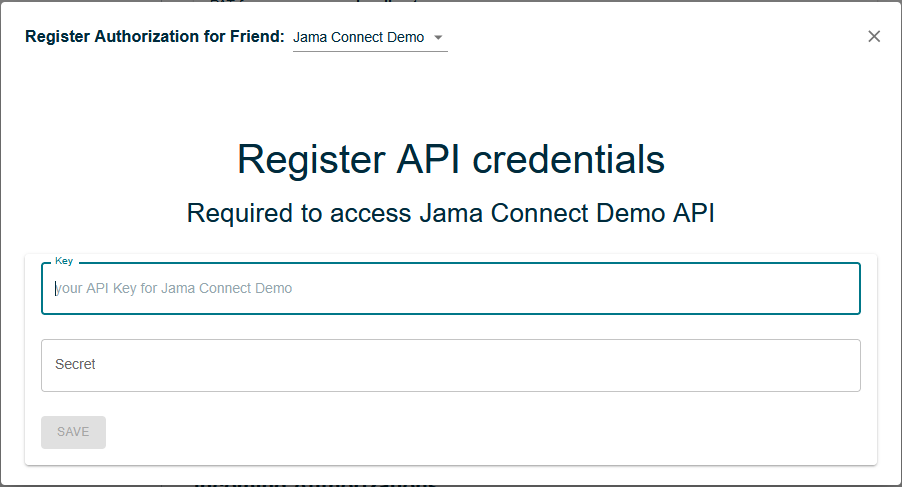
Enter an API Key created in Jama Connect.
1.2.3. Registering username and password for CodeBeamer
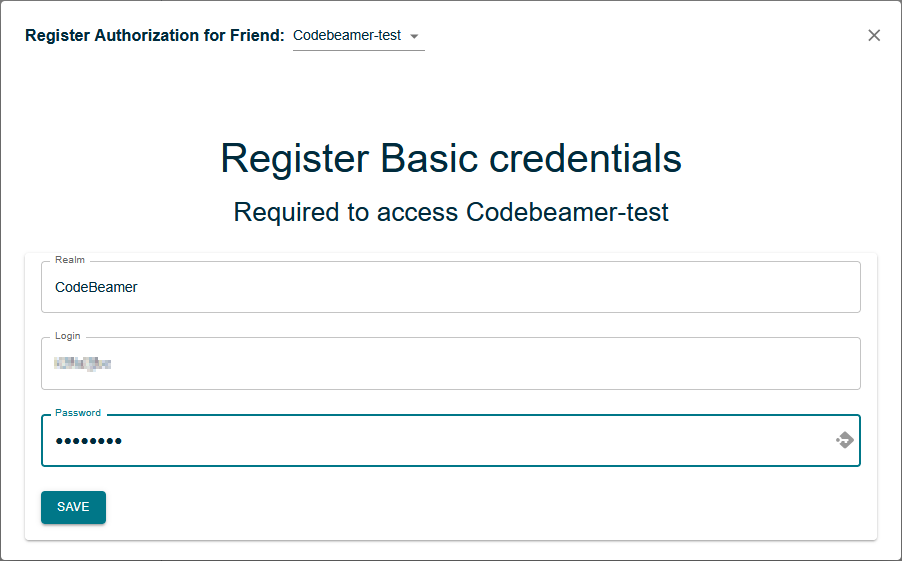
Enter CodeBeamer for the Realm, and your CodeBeamer username and password.
| The Codebeamer credentials are not listed among the outgoing credentials even though they are properly registered. This limitation will disappear in a future version of Publication For Capella. |
| Supporting OAuth-2.0 for authenticating with CodeBeamer is planned for a future release. |