Appstream usage.
This section explain basic usage of the AWs Appstream 2.0 Portal
|
New Portal
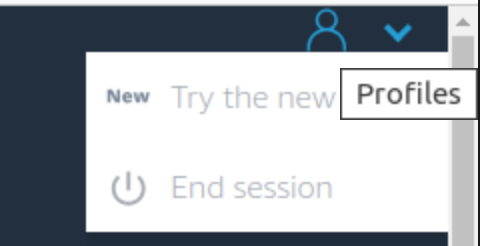
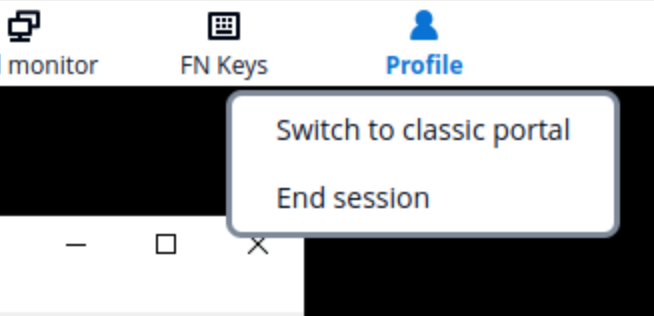
This documentaiton explain the usage of the New version portal of AWS Appstream 2.0. In case your are usng the old portal version, the new portal can be activated using The profile menu :
|
1. Application catalog
Regarding your user profile, some catalog are vaillable. Basically, only one Catalog is availlable.
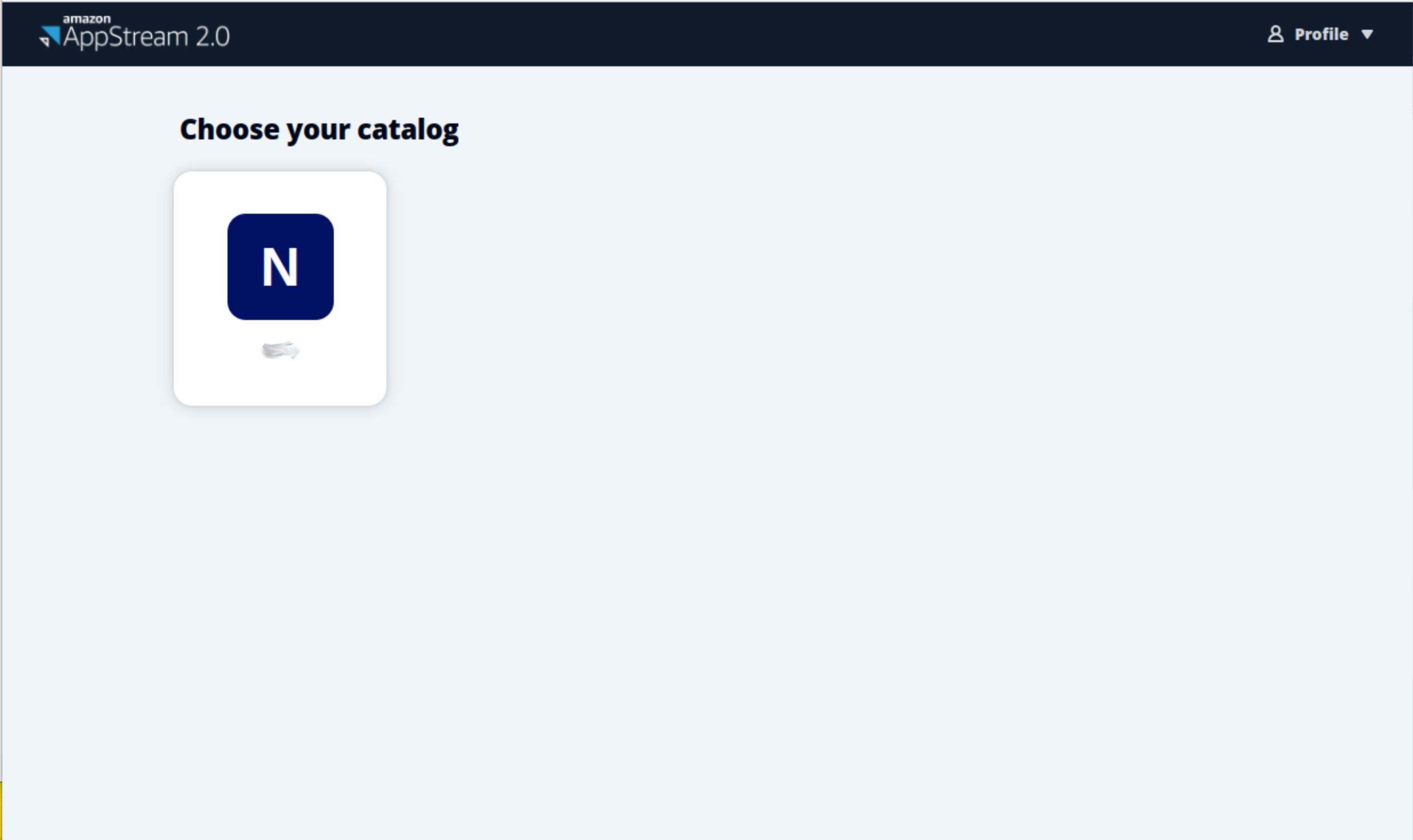
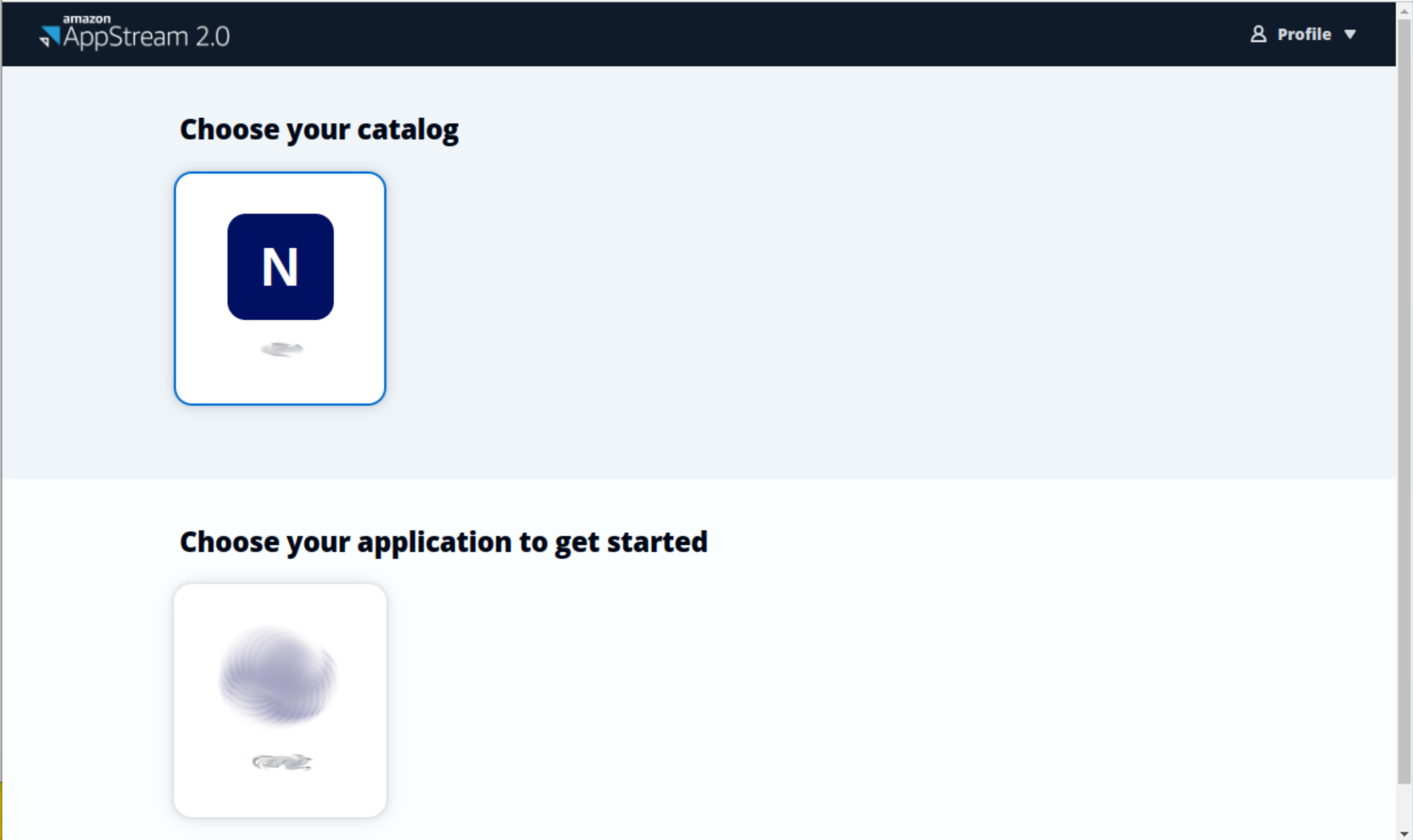
Applications can be launched with a simple click on their respective icons.
Once an application is launched, if the session is not already active, it may take a few seconds to prepare the host and the user session before the application becomes ready to use.
Once the session is loaded and the application is started, it is possible to experience some loading time for certain applications.
Once the application is launched and ready, the web browser can be used as a remote screen. The application catalog is directly accessible from the AppStream 2.0 toolbar.
2. Appstream Portal
The AppStream portal give access to a toolbar with some functionality :
-
 : Open the application Catalog to open a new one.
 -
 : Open a view with all applications to easily switch between each.
 -
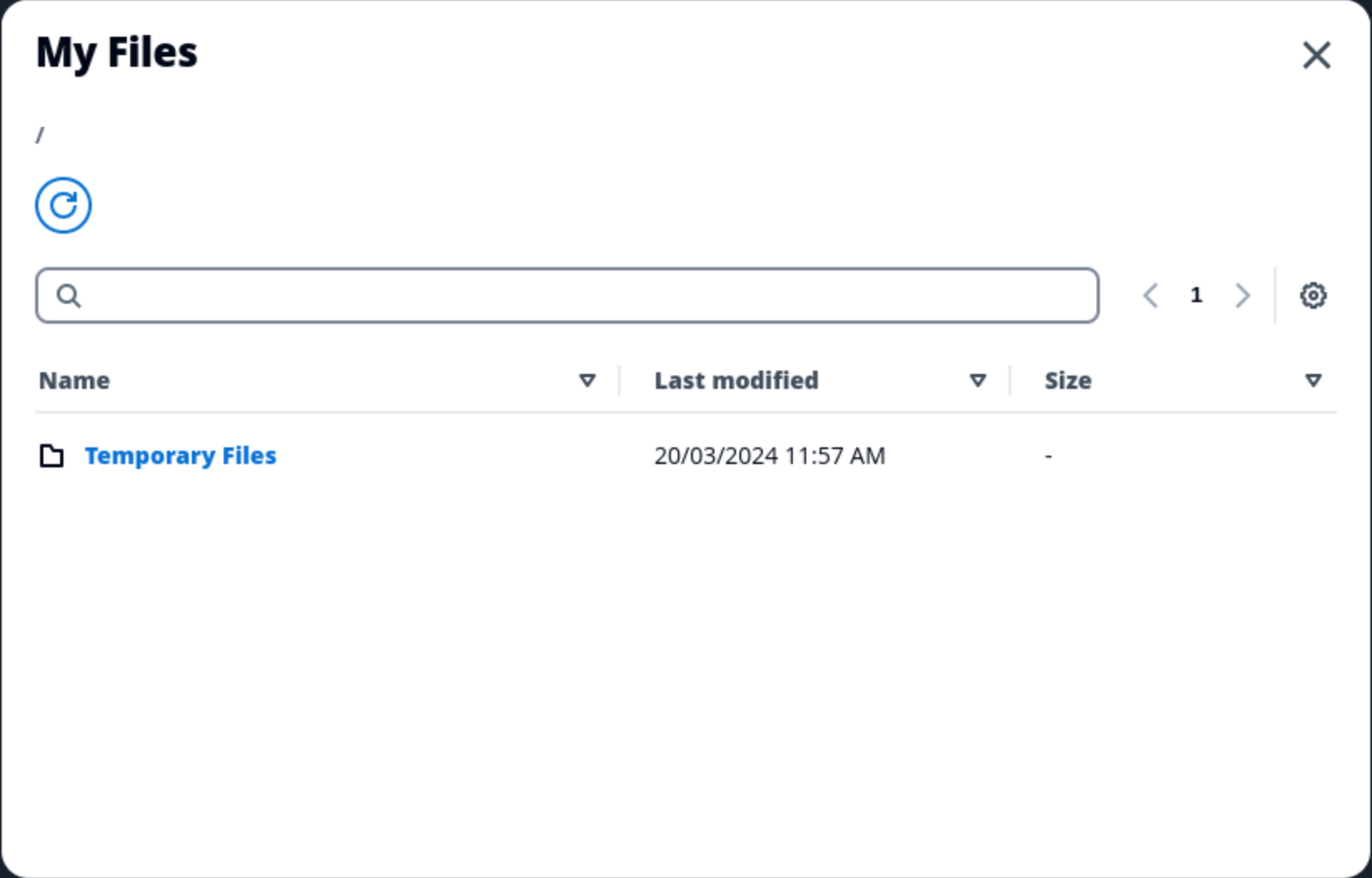
 : Open the folder manager (see Storage usage).
 -
 : Allow to copy / paste text from client host to AppStream applications (Ctrl+C Ctrl+V is also allowed).
 -
 : Give access to some settings linked to the audio and webcam (not useful in the C4C context).
 -
 : Switch the AppStream View on Fullscreen mode.
 -
 : Open a new Windows of your browser to give a secondary screen linked to your AppStream Session.
3. Storage usage
The AppStream instances provide some storage spaces to the final user.
-
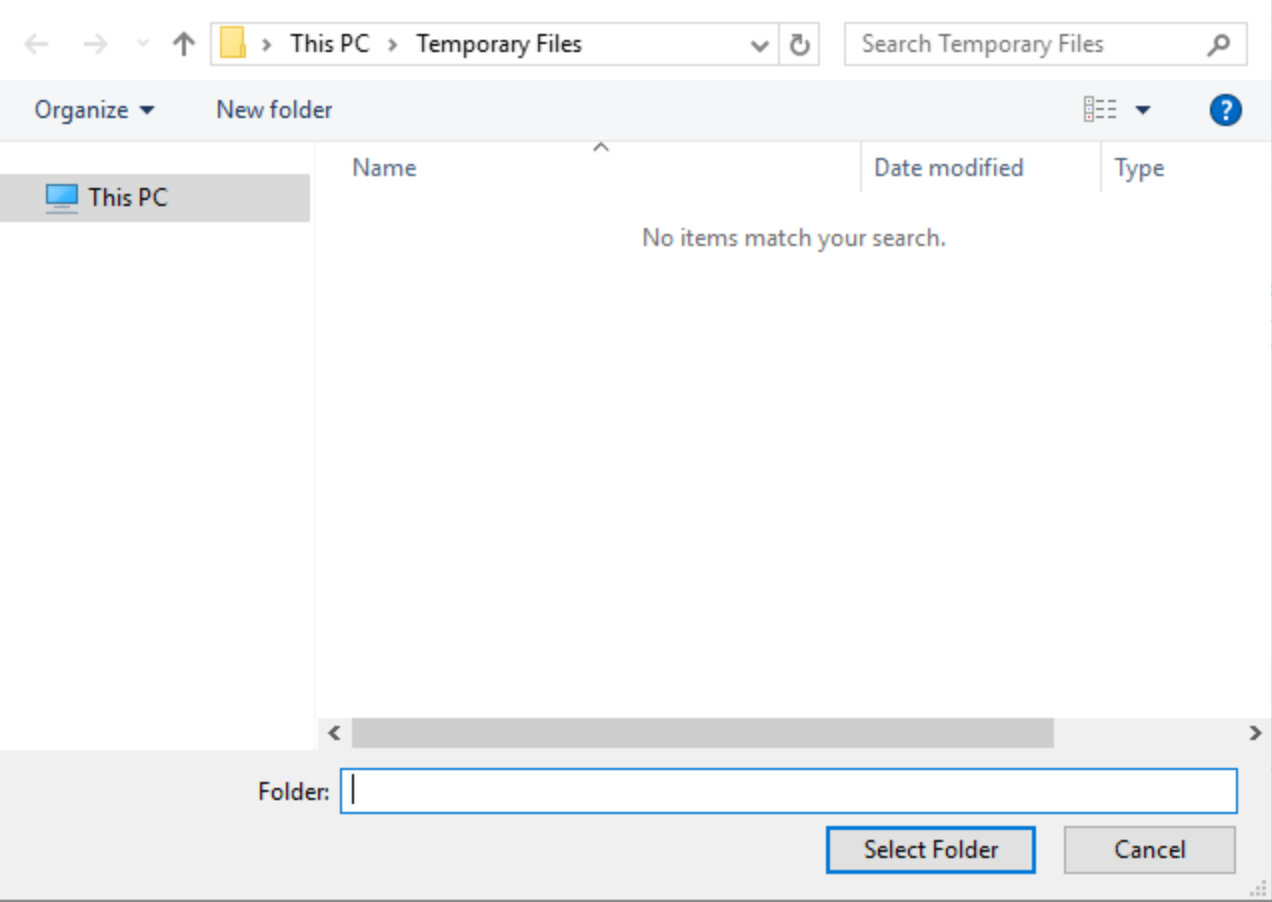
Exchange path (Temporary Files)
The Temporary Folder is utilized for storing and sharing files between the AppStream host and the user’s host. However, it is important to note that this space is not persistent and is deleted each time the user session is closed.
-
Persisted workspace
The applicative workspace is stored on the Appstream host on a hidden space on the path
D:\PhotonUser\workspace -
Unpersisted Local Working space
Additional folders such as
C:\C:\
4. Leaving the platform
To leave the platform and free the allowed ressources, you should :
-
Cleanly close the application by using the
X -
Logout of the Appstream environment using the Profile menu available at the top right of the web page.
5. Session duration
The Appstream instance is configured to have some session constraints :
-
In case of inactivity, the user is disconnected from his session after 4 hours. The graphical / user session is still alive, but the web page requests a new authentication with credentials to give access.
-
In case of disconnected sessions, the user session is destroyed after 30 minutes. This means that the graphical / user session is killed. If applications was running in this step with unsaved modification, this modifications will be lost
-
A user session cannot exceed 960 minutes. If a user is connected more than this time without disconnection, the session will be automatically killed. If applications was running in this step with unsaved modification, this modifications will be lost
6. Common Appstream errors
6.1. Blank page
When trying to connect to the Cloud for Capella service, you may end-up with the following empty page:
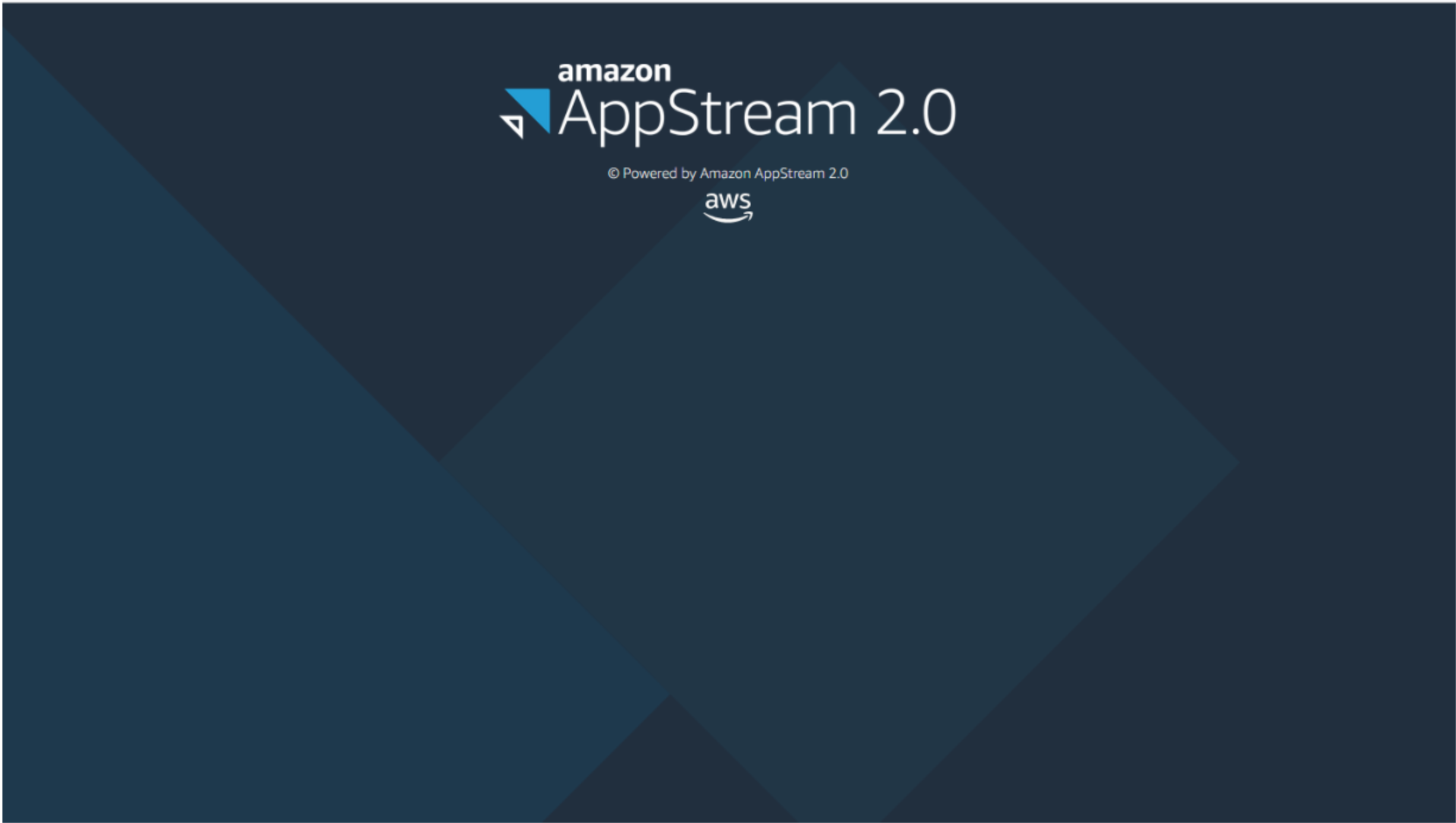
This may happen if you close your session and then try to reconnect too fast (before AWS can clean up properly your previous session). In that case, close your tab, wait for 30 seconds, and open a new tab for reconnecting to the service