Linking from Polarion to Publication For Capella
1. Overview of Polarion - Publication For Capella Connectivity
Publication For Capella exposes model data according to the OSLC-AM (Architecture Management) domain.
Polarion can be configured to make it possible to link Polarion items to model objects exposed by Publication For Capella.
This document describes how links can be created from Polarion tickets to Capella model elements exposed by Publication For Capella.
2. Pre-requisites
-
The Publication For Capella server must be running. For the examples used in this document, we will assumed it is deployed at the URL
http://perseus.mycompany.com:9443 -
An administrator must have configured the association between Polarion and Publication For Capella, as described in the Publication For Capella Deployment guide.
3. Creating a link to a Model Element
-
Navigate to the Polarion work item that you want to link to a Publication For Capella model object.
-
In the 'Linked Work Items' section, click on the pencil to edit the list of related work items.

-
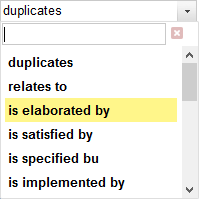
In the 'Role' combo-box select the kind of link that you want to use. It must be configured to be compatible with objects exposed by Publication For Capella.
-
The little icon
 to link to external items become active.
-
Click on the icon to link to a remote item.
-
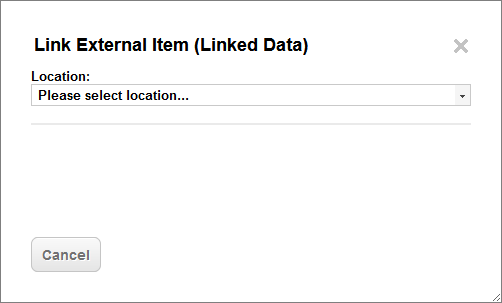
In the pop-up that appears, select the Publication For Capella friend server that contains the model elements you want to link to.
-
-
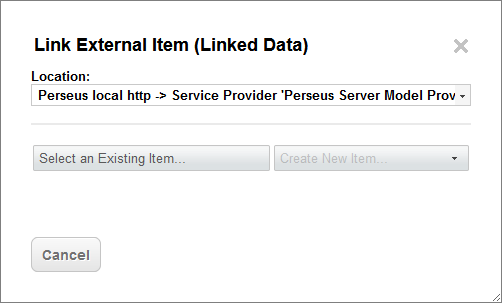
Then, click on 'Select an Existing Item'.
-
NOTE: Publication For Capella does not support creating new model elements from Polarion. It is only possible to link to existing model elements. This is not a limitation but rather a design decision, and this is not expected to change in the future.
-

-
If needed - Enter valid credentials if prompted for credentials.
-
If needed - Allow Polarion to browse your data on Publication For Capella if prompted to.
-
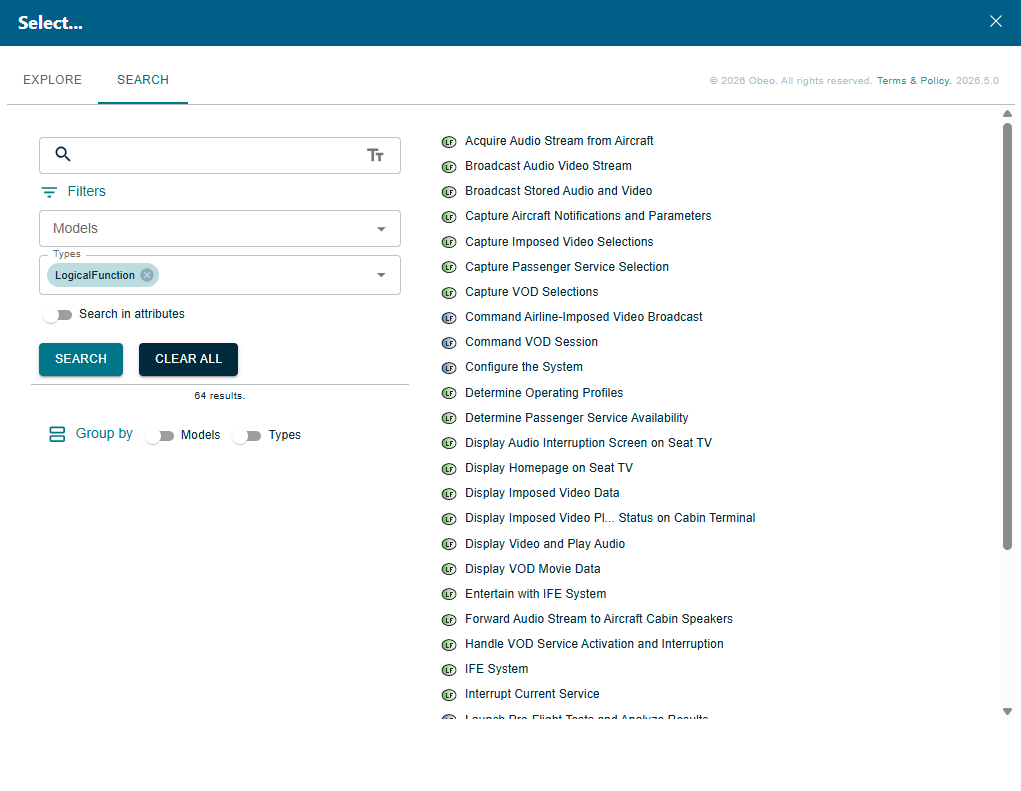
A dialog is displayed to search for model elements in the Publication For Capella server. Elements to link can be retrieved a model explorer or searched using Publication For Capella filtered search UI.
-
Select the element you want to link to by clicking on it.
-
The selected element gets added to the Polarion.

-
Save the modifications of the work item.
4. Removing a link
-
In the 'Linked Work Items' section, click on the pencil to edit the list of related work items.
-
Click on the minus sign to remove a link
-
Save the changes
5. Known Limitations - Polarion integration
-
Publication For Capella will sometimes return an error 'Expired OAuth token' - Just reattempt to link the element, you will have to allow Polarion to access your data again.
-
Search limitations:
-
Filtering elements that are sub-types of a given type is not supported.
-