1. Connecting to Remote Repositories with OSLC
Publication For Capella is an OSLC Provider that exposes model elements using the OSLC AM (Architecture Management) vocabulary.
Publication For Capella is also an OSLC Consumer that can connect to third-party repositories using OSLC. It has been tested with Polarion(tm) and IBM DOORS Next(tm).
This section describes how the connection to such third-party repositories is established and used.
1.1. Friend Servers
The first operation that needs to be performed to connect to a third-party repository is to emit a so-called 'Friend Request' to this repository.
1.1.1. View the Publication For Capella server’s Friends
This page is only accessible to a Server Administrator.
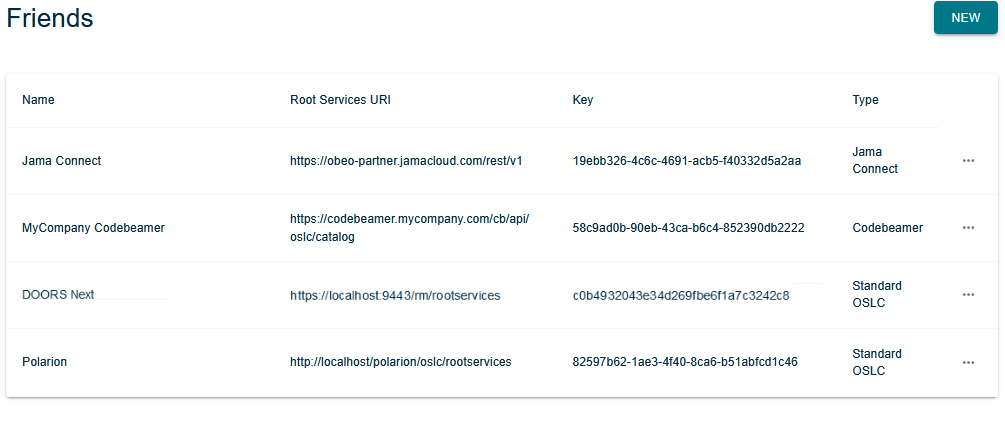
The page of the server’s Friends display the list of known Friend servers with the following details:
-
Name: The user-friendly name of the friend (editable).
-
Root Services URI: The URL of the friend, used as the main entry point for all communications with that friend. If the friend is a standard OSLC server, this is its root services URL. Otherwise, please refer to the specific integrations documentation below.
-
Key: The key used for authenticating with this friend.
-
Type: The type of the friend server, one of:
-
Standard OSLC (Polarion, IBM Jazz): The default value; -
Jama Connect; -
Codebeamer.
-
-
The last column contains actions to rename or delete friend servers.
1.1.2. Create a new Standard Friend
This is the procedure to follow to connect to Polarion, any IBM Jazz application (IBM DOORS Next, IBM EWM, IBM QM, …), Jira, Confluence, or any server that conforms to OSLC.
-
Pre-Requisites
-
Being logged in as a Server Administrator;
-
Navigate to the 'Friends' page;
-
Know the Friend server’s OSLC root services URL. That URL depends on the third-party repository you want to connect to, please refer to the relevant documentation of that repository.
-
-
Modus Operandi
-
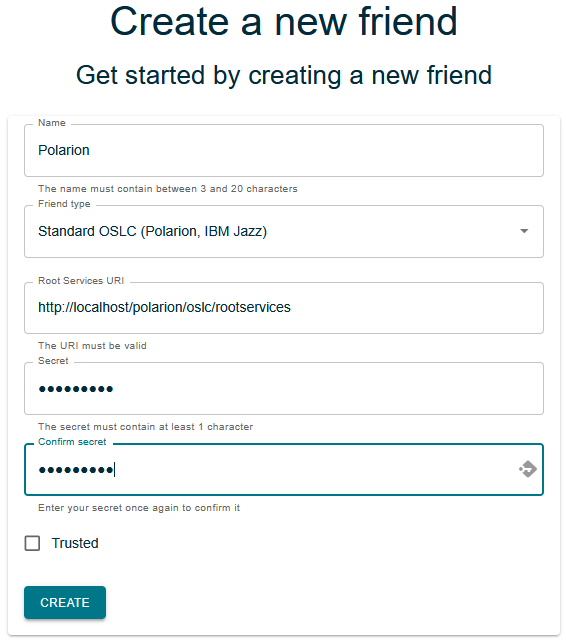
Click on the button 'New': The OSLC Friend creation dialog is displayed.
-
-
Fill in the form:
-
Name: This is a human-readable name that should make it easy for users to recognize the Friend server.
-
Friend type: Leave it to the default value 'Standard OSLC (Polarion, IBM Jazz)'.
-
Root Services URI: This is the URL of the friend server’s root services entry point. That information can only be obtained from the third-party repository’s documentation.
-
|
-
Secret: This should be a complex password, we recommend using at least 12 characters and mixing lowercase & uppercase letters, digits and special characters.
-
Confirm secret: This should be the same as the Secret above.
-
Trusted: This is reserved for future use and has no effect.
-
Click on 'Create'
-
-
If successful, the dialog is closed and the friend appears in the list of server friends. In the background, a friend request is issued and sent to the remote server using its root services URL.
|
This request must be accepted by the third-party repository administrator (or whoever is relevant according to the third-party repository’s policy).
|
-
If the root services URL is incorrect, then an error message is displayed on the bottom right of the page.
1.1.3. Create a new Jama Connect Friend
This is the procedure to follow to connect to a Jama Connect server.
-
Pre-Requisites
-
Being logged in as a Server Administrator;
-
Navigate to the 'Friends' page;
-
Know the Jama Connect server’s Rest API URL.
-
-
Modus Operandi
-
Click on the button 'New': The OSLC Friend creation dialog is displayed.
-
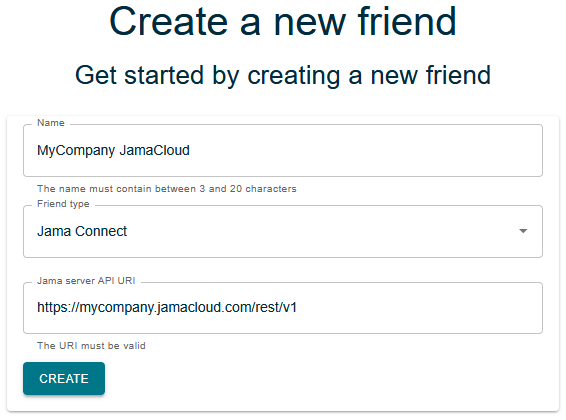
Select the Friend type 'Jama Connect'.
-
Fill in the form:
-
Name: This is a human-readable name that should make it easy for users to recognize the Jama Connect server.
-
Friend type: Set it to 'Jama Connect'.
-
Jama server API URI: This is the URL of the Jama Connect server’s Rest API entry point (Currently, the integration has only been tested with version 1 of the Jama Connect Rest API). For example,
https://<mycompany.jamacloud.com>/rest/v1.
-
Configure a Jama Connect Friend Server
Jama Connect Friend server declarations have a specificity: They can be configured.
To access the configuration of a Jama Connect friend server, click on the friend’s name in the page View the Publication For Capella server’s Friends. The Jama Connect Settings page will open.
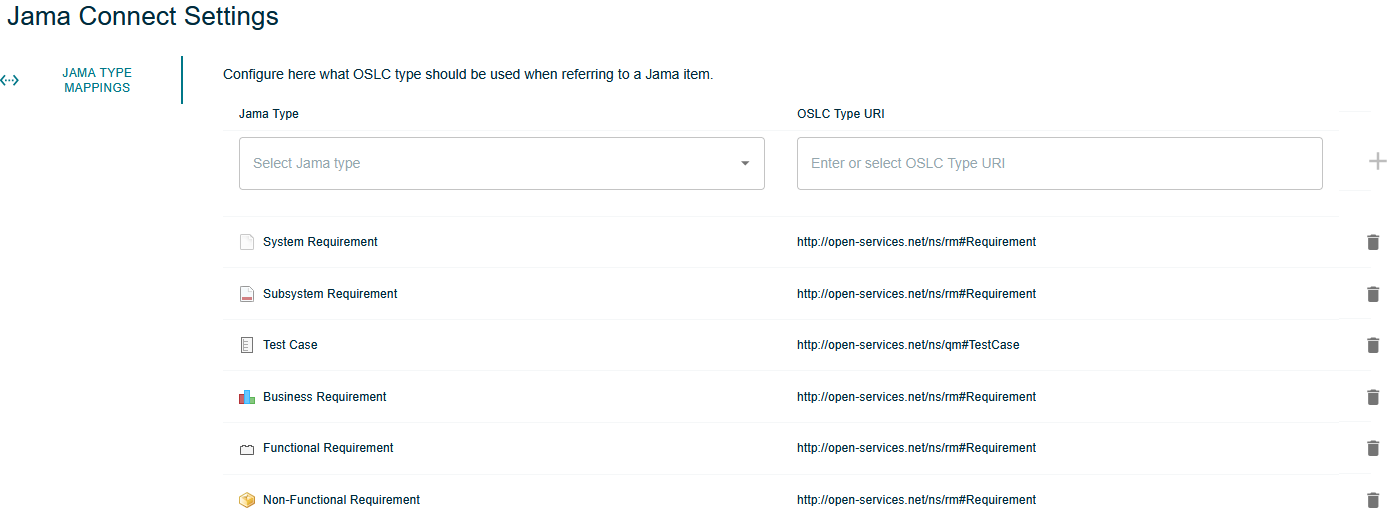
This page makes it possible to configure the mapping of the Jama Connect server’s item types to OSLC types.
Only the items whose type is mapped to an OSLC type will be recognized by Publication For Capella.
OSLC types are identified by a URI. Standard OSLC types include (non-exhaustive list):
-
Requirements Management Domain:
-
http://open-service.net/ns/rm#Requirement. -
http://open-service.net/ns/rm#RequirementCollection.
-
-
Quality Management Domain:
-
http://open-service.net/ns/qm#TestCase. -
http://open-service.net/ns/qm#TestPlan. -
http://open-service.net/ns/qm#TestScript. -
http://open-service.net/ns/qm#TestResult. -
http://open-service.net/ns/qm#TestxecutionRecord.
-
-
Change Management Domain:
-
http://open-service.net/ns/cm#ChangeNotice. -
http://open-service.net/ns/cm#ChangeRequest. -
http://open-service.net/ns/cm#Defect. -
http://open-service.net/ns/cm#Enhancement. -
http://open-service.net/ns/cm#Task.
-
-
Architecture Management Domain:
-
http://open-services.net/ns/am#Resource.
-
However, it is possible to create additional types and use them with Publication For Capella if necessary.
The OSLC types mapped to Jama Connect item types must be defined in the other Publication For Capella settings:
-
In the OSLC Linking Configuration.
-
In the traceability settings of the Capella models.
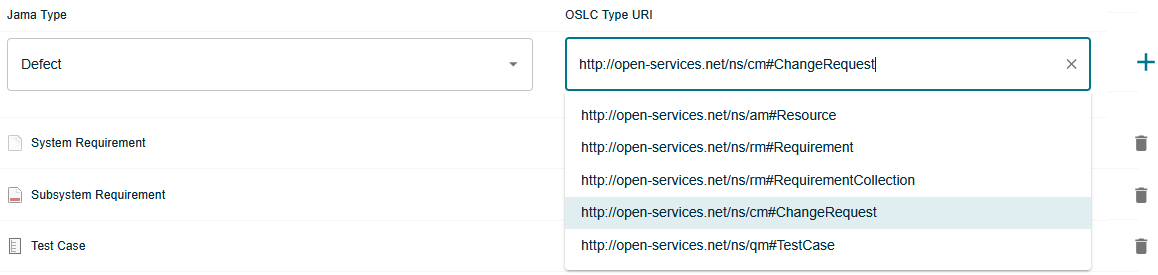
To add a mapping:
-
Select an item type in the left-hand input.
-
Select or type an OSLC type uri in the right-hand input.
-
Click on add.


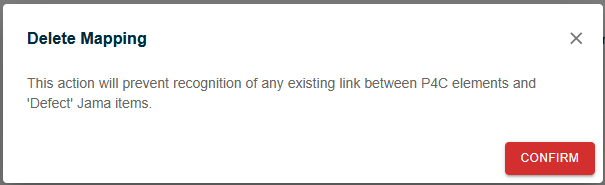
To delete a mapping, click on the trash icon in the mapping line. A confirmation dialog will be displayed.
1.1.4. Create a new Codebeamer Friend
This is the procedure to follow to connect to a PTC Codebeamer server.
-
Pre-Requisites
-
Being logged in as a Server Administrator;
-
Navigate to the 'Friends' page;
-
Know the Codebeamer server’s URL.
-
-
Modus Operandi
-
Click on the button 'New': The OSLC Friend creation dialog is displayed.
-
Select the Friend type 'Codebeamer'.
-
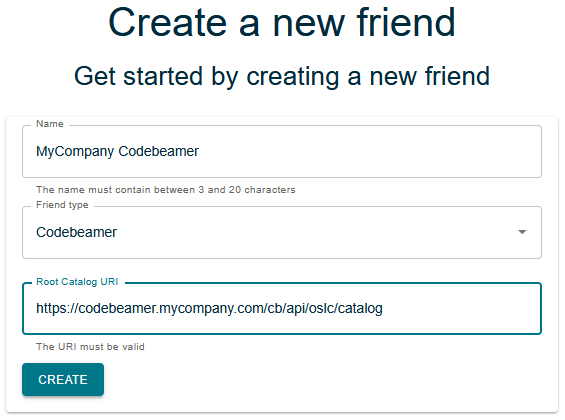
Fill in the form:
-
Name: This is a human-readable name that should make it easy for users to recognize the Codebeamer server.
-
Friend type: Set it to 'Codebeamer'.
-
Root catalog URI: This is the URL of the Codebeamer server’s OSLC catalog entry point. For example, on a CodeBeamer server deployed at
https://<codebeamer.mycompany.com>/cb, theRoot catalog URIto use should be:https://<codebeamer.mycompany.com>/cb/api/oslc/catalog.
-
1.1.5. Rename a Friend
-
Pre-Requisites
-
Being logged in as a Server Administrator;
-
Navigate to the 'Friends' page;
-
-
Modus Operandi
-
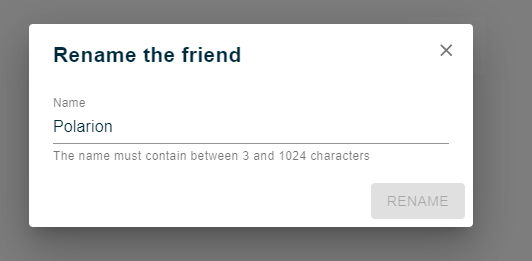
Click on the icon '…' on the line of the Friend to rename, select the 'Rename' action: A renaming dialog is opened.
-
1.1.6. Delete a Friend
-
Pre-Requisites
-
Being logged in as a Server Administrator;
-
Navigate to the 'Friends' page;
-
-
Modus Operandi
-
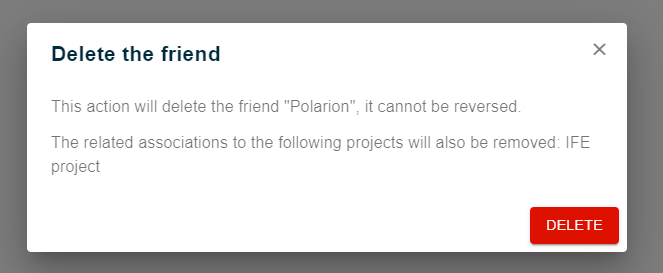
Click on the icon '…' on the line of the Friend to rename, select the 'Delete' action: A confirmation Dialog is opened. The dialog indicates the OSLC Associations that will be deleted, if any.
-
1.2. OSLC Associations
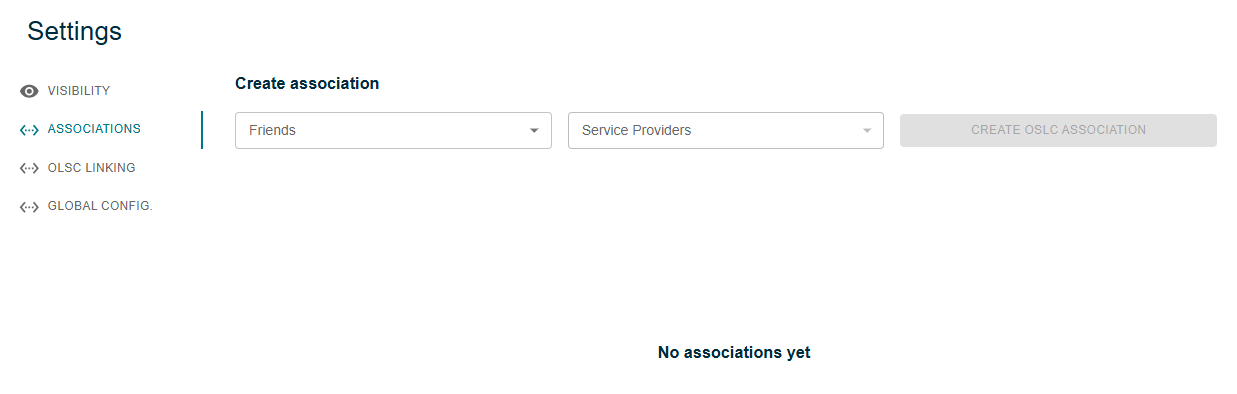
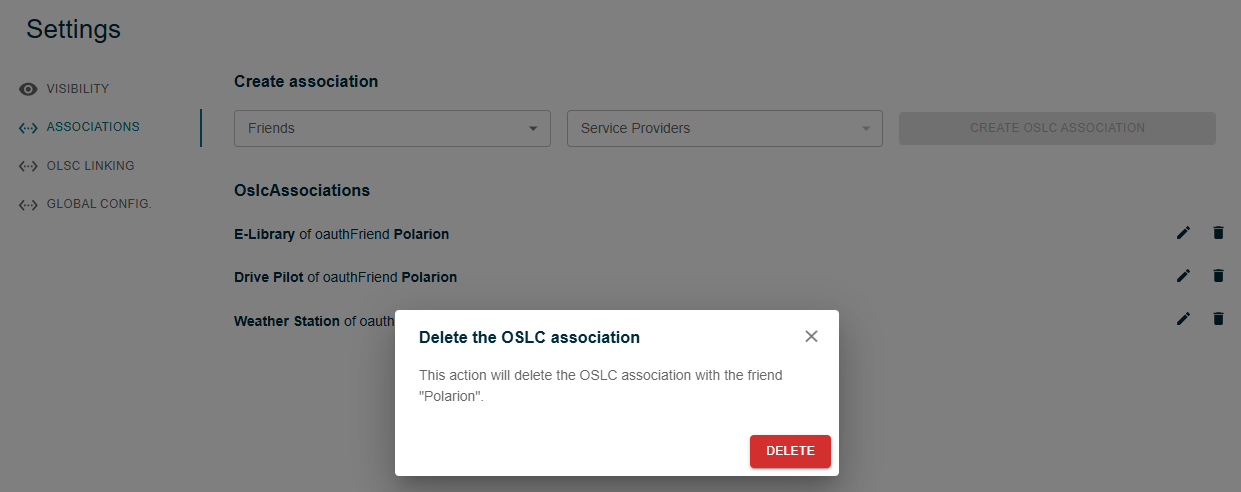
Once the OSLC 'friendship' is established between the Publication For Capella server and a third-party repository, each Project Administrator can define 'OSLC Associations' between their Publication For Capella project and OSLC Service Providers of a friend server.
The association configuration page can be found in project settings, under the "Associations" tab:
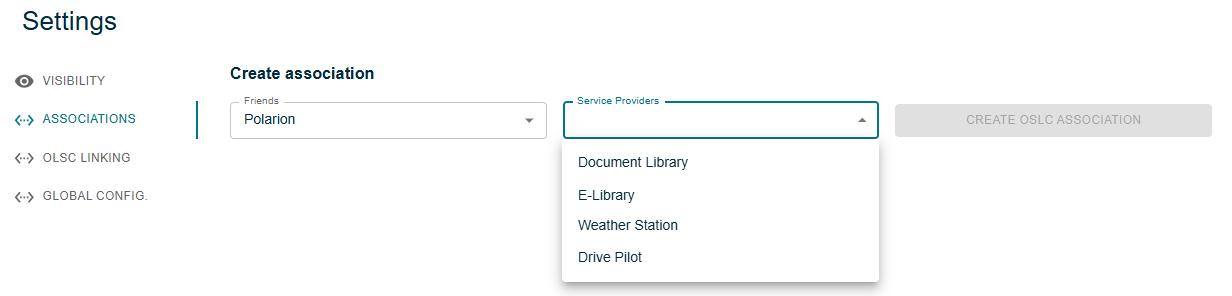
Once a friend is selected, a service provider can be selected among available ones:
Clicking on "Create OSLC Association" will add the association to the list. This button is grayed if the association already exists:
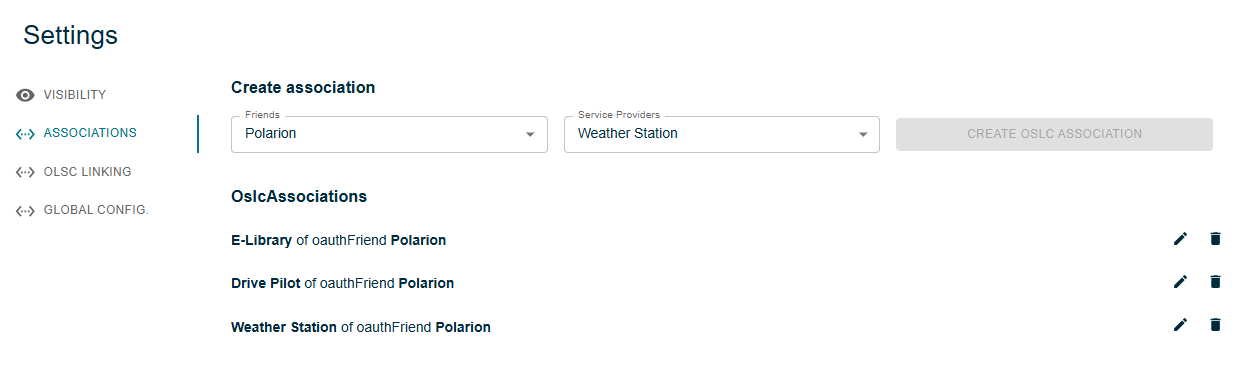
An association can be deleted from the list, this will display a warning dialog.
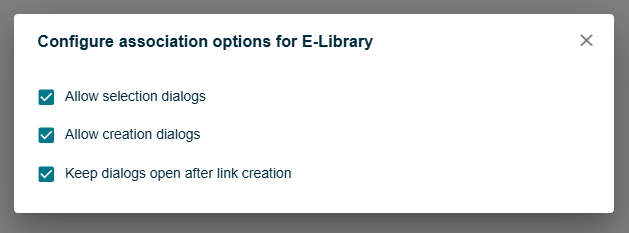
An association can be parameterized by clicking on the pen icon next to it. A dialog makes it possible to change the following options:
-
"Allow selection dialogs": Unckecking this option will remove the selection dialogs from the list of available dialogs when creating a link.
-
"Allow creation dialogs": Unckecking this option will remove the creation dialogs from the list of available dialogs when creating a link.
-
"Keep dialogs open after links creation": Unckecking this option will make the link creation dialog close after automatically after use. This option is unchecked by default except when associating with a Polarion server. It is recommended to leave this option unchecked when associating with a third-party that supports multi-selection, such as IBM DOORS Next or Atlassian Jira, for instance.
1.3. OSLC Links
Once at least one OSLC association has been configured on a Publication For Capella project, users that are allowed to edit the project can create links to artifacts hosted on the friend repositories.
See sections [info-mo-sb-oslc-panel], [info-mo-oslc-add-link], [info-mo-oslc-del-link], or for more details.
1.4. OSLC Linking Configuration
The OSLC Linking Configuration makes it possible to configure, to some extent and depending on the third-party repositories capabilities, the kinds of links that can be created to third-party repository objects.
For example, it is possible to allow the creation of links 'satisfies' from Capella LogicalFunctions to third party Requirements, and of links 'refines' from Capella Logical Components to third-party Requirements.
1.4.1. Default and Project-Specific Configurations
The Server Administrator can configure the default Linking configuration, which will be used by default by all the projects of the server.
Global OSLC Linking configuration
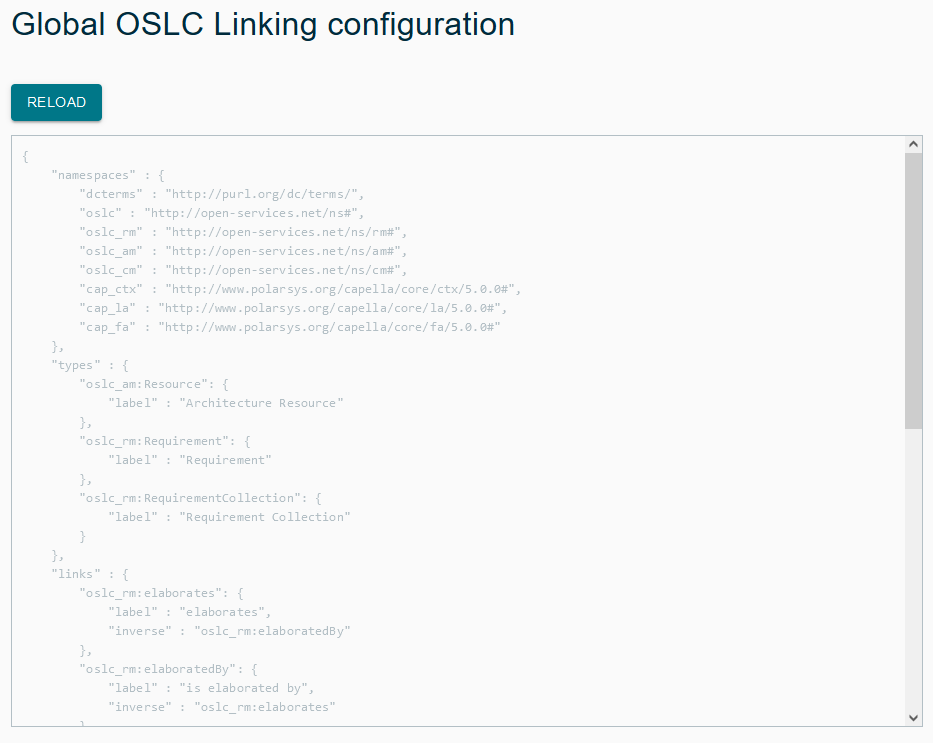
The Default Linking Configuration can be seen by a Server Administrator using the administrator user menu and selecting 'OSLC Linking'.
To modify it, the Server Administrator should manually edit the file containing those configuration then save it.
The path and name of this file is defined in application.properties file and inside its perseus.oslc.linking.default field.
Once this file has been modified, the Server Administrator must use the 'Reload' button on the default configuration page to reload the contents of the default configuration file so that it is used by the server.
Project-Specific OSLC Linking configuration
Each member of a Project’s Administrator Team can configure the Project-specific Linking configuration that will be used for this project.
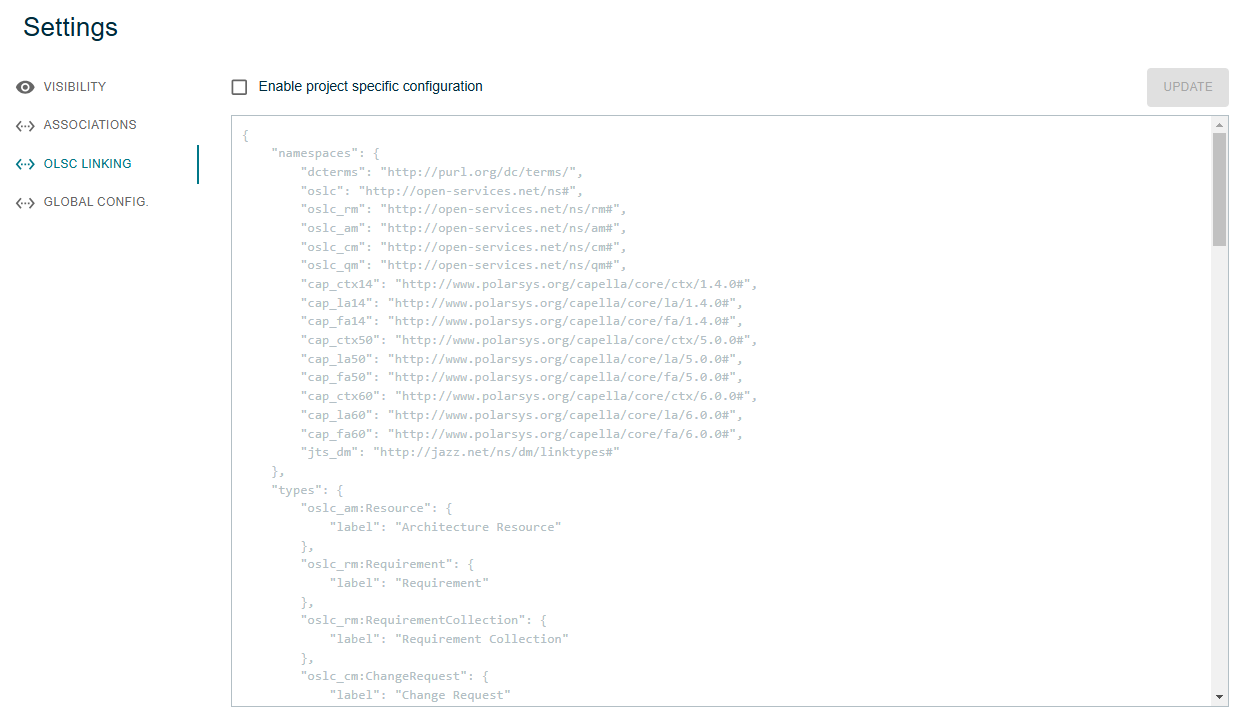
The Project Linking Configuration can be accessed by a Project Administrator in the project’s settings page.
-
Click on the checkbox to enable or disable the project-specific configuration
-
If enabled, the configuration can then be edited and saved using the text area in this page, and the 'Update' button.
1.4.2. Configuration Syntax
The configuration of OSLC Linking is specified in JSON format. The example below shows the different concepts that can be used for this configuration.
{
    "namespaces" : {
        "dcterms" : "http://purl.org/dc/terms/",
        "oslc" : "http://open-services.net/ns#",
        "oslc_rm" : "http://open-services.net/ns/rm#",
        "oslc_am" : "http://open-services.net/ns/am#",
        "oslc_cm" : "http://open-services.net/ns/cm#",
        "cap_ctx" : "http://www.polarsys.org/capella/core/ctx/5.0.0#",
        "cap_la" : "http://www.polarsys.org/capella/core/la/5.0.0#",
        "cap_fa" : "http://www.polarsys.org/capella/core/fa/5.0.0#"
    },
    "types" : {
        "oslc_am:Resource": {
            "label" : "Architecture Resource"
        },
        "oslc_rm:Requirement": {
            "label" : "Requirement"
        },
        "oslc_rm:RequirementCollection": {
            "label" : "Requirement Collection"
        }
    },
    "links" : {
        "oslc_rm:elaborates": {
            "label" : "elaborates",
            "inverse" : "oslc_rm:elaboratedBy"
        },
        "oslc_rm:elaboratedBy": {
            "label" : "is elaborated by",
            "inverse" : "oslc_rm:elaborates"
        },
        "oslc_rm:satisfies": {
            "label" : "satisfies",
            "inverse" : "oslc_rm:satisfiedBy"
        },
        "oslc_rm:satisfiedBy": {
            "label" : "is satisfied by",
            "inverse" : "oslc_rm:satisfies"
        },
        "oslc_rm:refines": {
            "label" : "refines",
            "inverse" : "oslc_rm:refinedBy"
        },
        "oslc_rm:refinedBy": {
            "label" : "is refined by",
            "inverse" : "oslc_rm:refines"
        }
    },
    "linking" : {
        "cap_la:LogicalComponent" : {
            "oslc_rm:elaborates": ["oslc_rm:Requirement"],
            "oslc_rm:refines": ["oslc_rm:Requirement", "oslc_am:Resource"]
        },
        "cap_la:LogicalFunction" : {
            "oslc_rm:satisfies": ["oslc_rm:Requirement", "oslc_rm:RequirementCollection"],
            "oslc_rm:refines": ["oslc_rm:Requirement", "oslc_am:Resource"]
        }
    }
}-
namespaces: This is a JSON Object that defines prefixes for URI used in the rest of the document.
-
The
namespaceof the meta-class of a model element hosted in Publication For Capella can be found on this model elements page. Add a#character at the end to use it in the OSLC linking configuration.
-
-
types: This is a JSON Object that defines the object types that can be used , and the labels corresponding to these types.
-
links: This is a JSON Object that defines the links types that can be used. Each type of link has a 'label' and an 'inverse' that refers to a link type. The 'reverse' link type is used to create a backlink on the Friend server for each link created from the Publication For Capella server, along the lines of the Linked Data philosophy.
-
linking: This is a JSON object that defines the types of links that can be created from specific types of model objects stored on the Publication For Capella server to specific types of remote objects on third-party friend repositories.
|
General Consideration on Configuration Consistency between Repositories
It is important to make sure that the configuration of links in the Publication For Capella server matches the one in the connected repositories. Especially, it is necessary that the link types and associated reverse link types match. They need to be declared symmetrically in Publication For Capella and in the connected repositories. For example, Let’s assume a link type |
1.4.3. IBM DOORS Next Specific Configuration
When configuring links to create towards DOORS Next requirements, it is necessary to respect the following constraints:
-
In the
namespacessection, define a namespace prefix for the Jazz-Specificlinktypesnamespace:-
jts_dm : "http://jazz.net/ns/dm/linktypes#"
-
-
In the
linkssection, define any of the following link types without any reverse (these are the link types supported by DOORS Next):-
jts_dm:trace(For links labeled as “Traced By Architecture Element” in DOORS Next) -
jts_dm:refine(For links labeled as “Refined By Architecture Element” in DOORS Next) -
jts_dm:satisfy(For links labeled as “Satisfied By Architecture Element” in DOORS Next) -
jts_dm:derives(For links labeled as “Derives Architecture Element” in DOORS Next, the ‘s’ at the end of ‘derives’ is on purpose)
-
-
In the
linkingssection, assign these link types to relevant object types.
A minimal example of a valid configuration to create links of type satisfies to DOORS Next requirements would be:
{
    "namespaces" : {
        "oslc_rm" : "http://open-services.net/ns/rm#",
        "oslc_am" : "http://open-services.net/ns/am#",
        "cap_la" : "http://www.polarsys.org/capella/core/la/5.0.0#",
        "jts_dm" : "http://jazz.net/ns/dm/linktypes#"
    },
    "types" : {
        "oslc_am:Resource": {
            "label" : "Architecture Resource"
        },
        "oslc_rm:Requirement": {
            "label" : "Requirement"
        },
        "oslc_rm:RequirementCollection": {
            "label" : "Requirement Collection"
        }
    },
    "links" : {
        "jts_dm:satisfy": {
            "label" : "satisfies DOORS Next Requirement"
        }
    },
    "linking" : {
        "cap_la:LogicalComponent" : {
            "jts_dm:satisfy": ["oslc_rm:Requirement"]
        },
        "cap_la:LogicalFunction" : {
            "jts_dm:satisfy": ["oslc_rm:Requirement"]
        }
    }
}
1.4.4. IBM EWM Specific Configuration
Links that can be created to Change Requests exposed by IBM EWM are constrained. However, Publication For Capella does not currently support dynamically configuring the types of links that can be created based on remote server’s configuration.
So, currently, when configuring links to create towards IBM EWM change requests, it is necessary to respect the following steps:
-
In the
namespacessection, define a namespace prefix for the Jazz-Specificlinktypesnamespace:-
"jts_dm" : "http://jazz.net/ns/dm/linktypes#"
-
-
In the
linkssection, define the following link type:-
jts_dm:elaborates-
with the label you wish to use in Publication For Capella,
-
with inverse value
oslc_cm:relatedArchitectureElement(For links labeled as “Elaborated By Architecture Element” in IBM EWM).
-
-
-
In the
linkingssection, assign these link types to relevant object types.
Such a configuration makes it possible to create links jts_dm:elaborates from Capella elements to EWM change requests, with a reverse link of type oslc_cm:relatedArchitectureElement visible in EWM.
A minimal example of a valid configuration to create links to DOORS Next requirements would be:
{
    "namespaces" : {
        "oslc_cm" : "http://open-services.net/ns/cm#",
        "oslc_am" : "http://open-services.net/ns/am#",
        "cap_la" : "http://www.polarsys.org/capella/core/la/5.0.0#",
        "jts_dm" : "http://jazz.net/ns/dm/linktypes#"
    },
    "types" : {
        "oslc_am:Resource": {
            "label" : "Architecture Resource"
        },
        "oslc_rm:Requirement": {
            "label" : "Requirement"
        },
        "oslc_cm:ChangeRequest": {
            "label" : "Change Request"
        }
    },
    "links" : {
        "oslc_cm:relatedArchitectureElement": {
            "label" : "Elaborated by Architecture Element",
            "inverse" : "jts_dm:elaborates"
        },
        "jts_dm:elaborates": {
            "label" : "elaborates Change Request",
            "inverse" : "oslc_cm:relatedArchitectureElement"
        }
    },
    "linking" : {
        "cap_la:LogicalComponent" : {
            "jts_dm:elaborates": ["oslc_cm:ChangeRequest"]
        },
        "cap_la:LogicalFunction" : {
            "jts_dm:elaborates": ["oslc_cm:ChangeRequest"]
        }
    }
}
1.4.5. IBM ETM Specific Configuration
Links that can be created to Test Cases exposed by IBM ETM are constrained. However, Publication For Capella does not currently support dynamically configuring the types of links that can be created based on remote server’s configuration.
So, currently, when configuring links to create towards IBM ETM Test Cases, it is necessary to respect the following steps:
-
In the
namespacessection, define prefixes for the following namespaces:-
"oslc_qm": "http://open-services.net/ns/qm#", -
"oslc_am": "http://open-services.net/ns/am#", -
"jts_rqm": "http://jazz.net/ns/qm/rqm#"
-
-
In the
typessection, define the following artifact type:-
"oslc_qm:TestCase": { "label": "Test Case" }
-
-
In the
linkssection, define the following link types:-
"oslc_am:validatedBy": { "label": "Validated By", "inverse": "jts_rqm:validatesArchitectureElement" }, -
"jts_rqm:validatesArchitectureElement": { "label": "Validates Architecture Element", "inverse": "oslc_am:validatedBy" } -
You can customize the
labelof these types
-
-
In the
linkingssection, assign these link types to relevant object types.
Such a configuration makes it possible to create links oslc_am:validatedBy from Capella elements to ETM Test Cases, with a reverse link of type jts_rqm:validatesArchitectureElement visible in ETM.
A minimal example of a valid configuration to create links to ETM requirements (from Logical Components and Logical Functions) would be:
{
    "namespaces" : {
        "oslc_qm": "http://open-services.net/ns/qm#",
        "oslc_am": "http://open-services.net/ns/am#",
        "jts_rqm": "http://jazz.net/ns/qm/rqm#"
    },
    "types" : {
        "oslc_am:Resource": {
            "label" : "Architecture Resource"
        },
        "oslc_qm:TestCase": {
            "label": "Test Case"
        }
    },
    "links" : {
        "oslc_am:validatedBy": {
            "label": "Validated By",
            "inverse": "jts_rqm:validatesArchitectureElement"
        },
        "jts_rqm:validatesArchitectureElement": {
            "label": "Validates Architecture Element",
            "inverse": "oslc_am:validatedBy"
        }
    },
    "linking" : {
        "cap_la:LogicalComponent" : {
            "oslc_am:validatedBy": ["oslc_qm:TestCase"]
        },
        "cap_la:LogicalFunction" : {
            "oslc_am:validatedBy": ["oslc_qm:TestCase"]
        }
    }
}
1.4.6. Jira Specific Configuration
| The following indications are only valid for use with the Jira add-on OSLC Connect for Jira by Sodius. |
Jira exposes its artifacts as Change Requests form the standard OSLC Change Management vocabulary (oslc_cm:ChangeRequest).
The only link type supported between Publication For Capella and Jira is jts_dm:elaborates, with an inverse type of oslc_cm:relatedArchitectureElement.
A minimal example of a valid configuration to create links to Jira Change Requests (from e.g. Logical Components and Logical Functions) would be:
{
    "namespaces" : {
        "dcterms" : "http://purl.org/dc/terms/",
        "oslc" : "http://open-services.net/ns#",
        "oslc_am" : "http://open-services.net/ns/am#", (1)
        "oslc_cm" : "http://open-services.net/ns/cm#", (2)
        "cap_ctx" : "http://www.polarsys.org/capella/core/ctx/7.0.0#", (3)
        "cap_la" : "http://www.polarsys.org/capella/core/la/7.0.0#", (3)
        "cap_fa" : "http://www.polarsys.org/capella/core/fa/7.0.0#", (3)
        "jts_dm" : "http://jazz.net/ns/dm/linktypes#" (4)
    },
    "types" : {
        "oslc_am:Resource": { (5)
            "label" : "Architecture Resource"
        },
        "oslc_cm:ChangeRequest": { (6)
            "label" : "Change Request"
        }
    },
    "links" : {
        "jts_dm:elaborates": { (7)
            "label" : "elaborates",
            "inverse" : "oslc_cm:relatedArchitectureElement" (8)
        },
        "oslc_cm:relatedArchitectureElement": { (9)
            "label" : "is elaborated by",
            "inverse" : "jts_dm:elaborates"
        }
    },
    "linking" : {
        "cap_la:LogicalComponent" : {
            "jts_dm:elaborates": ["oslc_cm:ChangeRequest"] (10)
        },
        "cap_la:LogicalFunction" : {
            "jts_dm:elaborates": ["oslc_cm:ChangeRequest"] (10)
        }
    }
}| 1 | Prefix for the Architecture Management Domain (for Publication For Capella model objects) |
| 2 | Prefix for the Change Management Domain (for Jira items) |
| 3 | Prefixes for some Capella 7 meta-models (there could be more if necessary) |
| 4 | Prefix for Jazz Team Server Domain, which is used by Jira as well |
| 5 | Artifact type for Architecture resources exposed by Publication For Capella |
| 6 | Artifact type for items exposed by Jira |
| 7 | Link type required by Jira for links from Publication For Capella model objects to Jira items |
| 8 | And the associated back-link type, required to create the back-links on Jira items |
| 9 | Declaration of the back-link type |
| 10 | Allow links with type jts_dm:elaborates from Publication For Capella elements to Jira items |
1.5. Authentication with OAuth 1
Publication For Capella supports OAuth 1.0 to authenticate users with Friend servers (except CodeBeamer, which does not support OAuth 1.0 and with which authentication is made using HTTP Basic).
OAuth 1.0 is an authorization framework that makes it possible to have Publication For Capella communicate with third-party servers, on behalf of a user, without having to know the user’s login and password on the friend server.
This authentication can be triggered on different occasions, whenever a user action in the Publication For Capella web site requires authenticated communication with a friend server.
A pop-up frame will be displayed to the user. This frame embed a page from the Friend server that will ensure that the user is properly authenticated on the remote server and allows Publication For Capella to access the friend server on their behalf.
On the user has confirmed that he or she agrees on Publication For Capella accessing the friend server on their behalf, an access token is securely generated and will be used for further communication between the Publication For Capella server and the friend server. Depending on the friend server’s implementation, this access token might have a limited duration. As long a this token is valid, the user will be able to access the friend server from the Publication For Capella server. As soon as this token in invalidated, for whatever reason, the OAuth authentication process described above will be triggered again.
The following figures show how this authentication looks like when accessing a Polarion server from Publication For Capella.
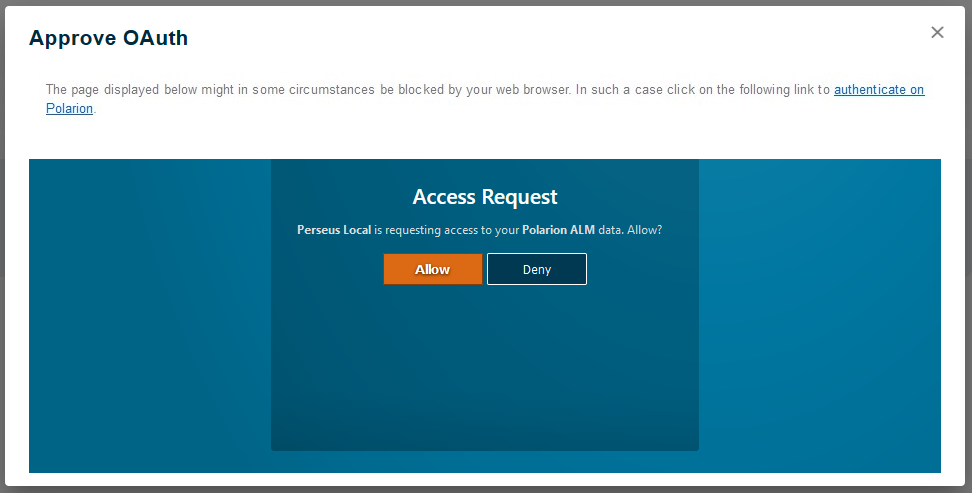
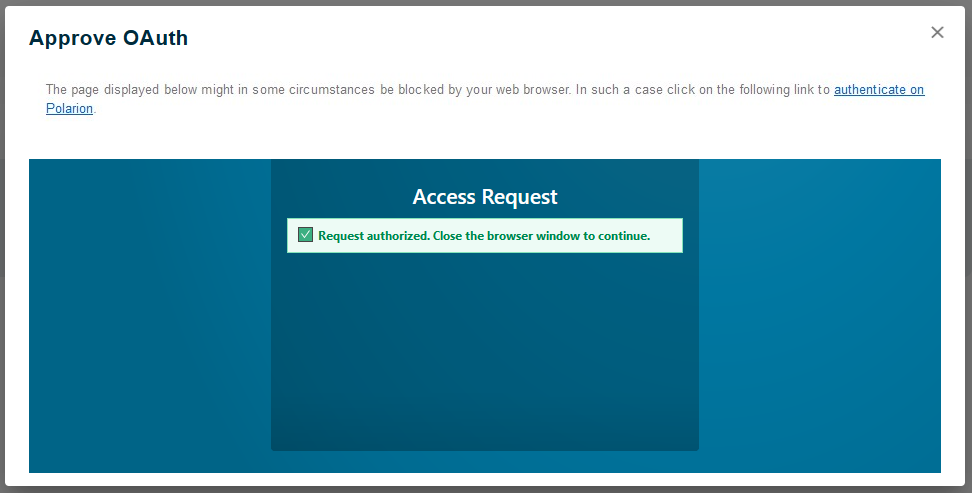
| In some cases, the OAuth user interface might be blocked by the web browser. If that happens, the user must click on the dedicated link to open the OAuth user interface directly within the Friend server’s website instead of within an iframe in the Publication For Capella website. The user will then be able to confirm approval, and Publication For Capella will then be able to securely communicate with the Friend server on behalf of the user. |