Workbench
🔥 This feature is currently considered experimental. Try it out and give feedback by reporting bugs and suggesting new features. It’s not recommended for production use.
👥 This feature is available to all users.
1. What’s the Workbench?
The Workbench page serves as the primary workbench for editing project content.
2. Find your way around
For those new to Sirius Web, the initial experience with the application might feel a bit challenging. To help you navigate seamlessly and kickstart collaboration with your team, we provide a guided tour for you to familiarize yourself with the platform.
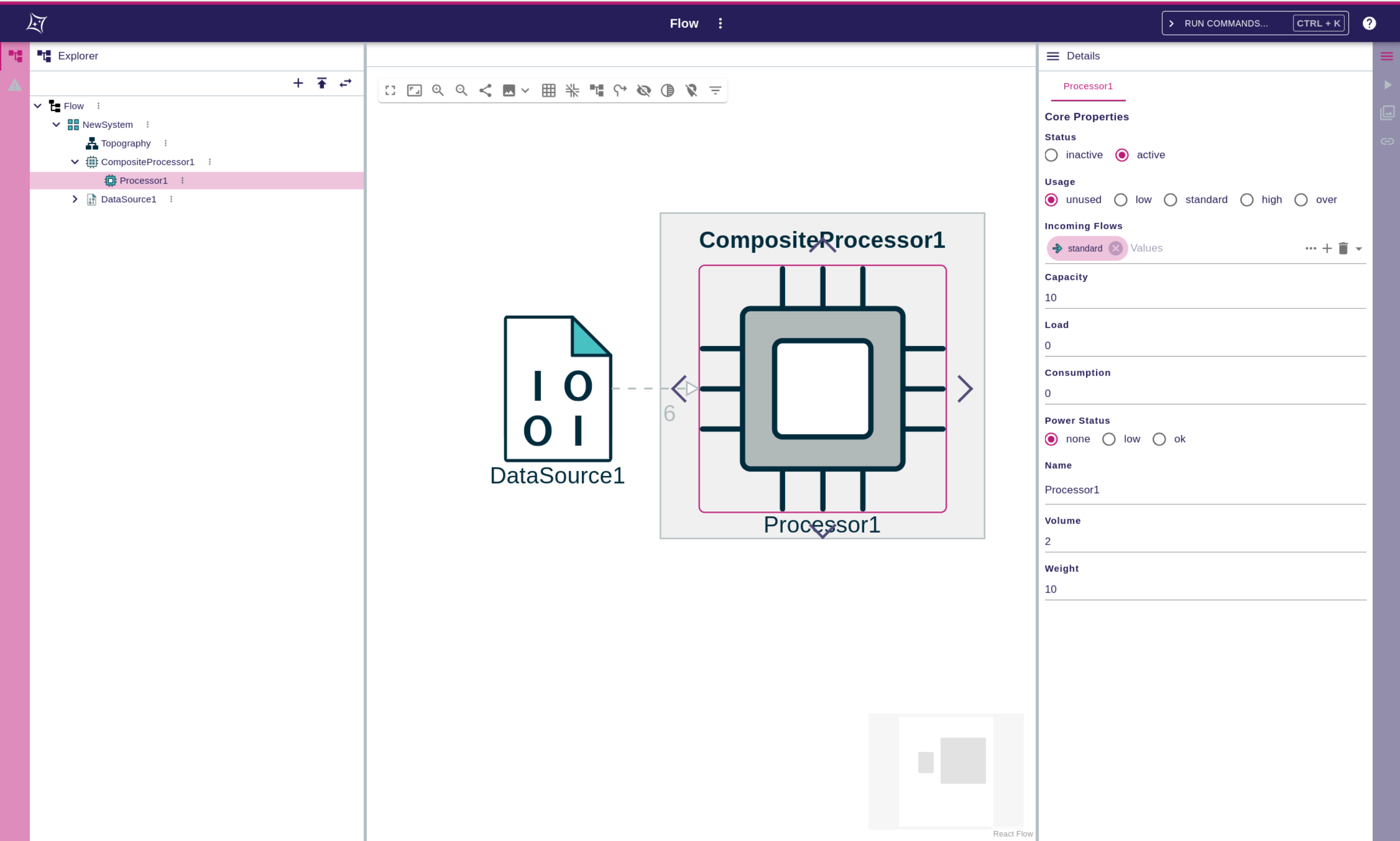
The Workbench features four distinct regions: a Toolbar, a Left panel, a main Editor, and a Right panel. The layout has been simplified to ensure a clear understanding of the content within each section.
2.1. Toolbar
The toolbar provides quick access to a set of actions, organized into four groups:
-
Homepage: navigation back to the home screen.
-
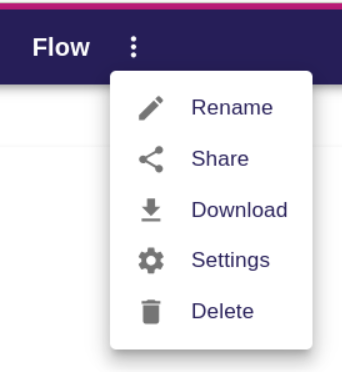
Project Actions: contextual actions related to the current project (displayed with the project name).
-
Omnibox: to quickly execute commands and search elements in your project.
-
Help: links to documentation, support, and additional resources.

2.1.1. Homepage
The Homepage action, visible on all pages of the application, provides a convenient way to navigate back to the Homepage.
2.1.3. Omnibox
The toolbar also includes access to the omnibox, which allows you to quickly find and execute commands.
-
Open the omnibox with the shortcut Ctrl+K (or Cmd+K on Mac).
-
Type to search for available commands or elements.
-
The list of commands is extensible: the exact options depend on the active project and configuration.
-
Narrow results by typing part of a command name, representation type, or element label—the palette matches as you type and highlights the best candidates.

This feature makes it faster to navigate within your project. For example, you can search for an element by name, even if it is hidden in the current view.
The omnibox will continue to evolve, with more commands and functionalities planned for future versions to streamline interactions with representations. Studios can contribute their own commands, so the list grows alongside your project’s capabilities.
2.1.4. Help
The Help action, accessible on every page of the application, offers a convenient pathway to navigate to the online help resources for Sirius Web.
2.2. Left panel
The left panel provides information related to the project and offers quick access to views that help you manage and validate your work.
It currently contains the following views:
-
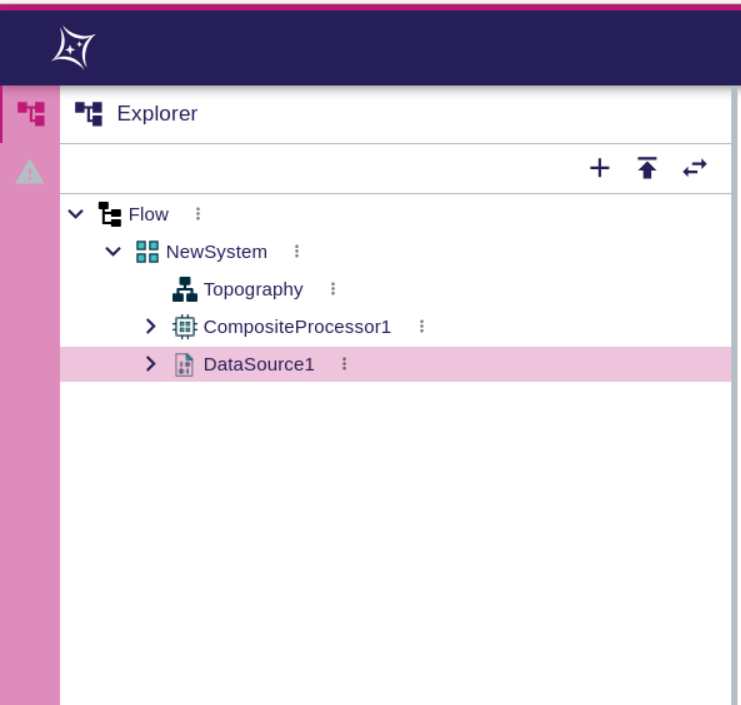
Explorer: browse and navigate through the elements of your project.
-
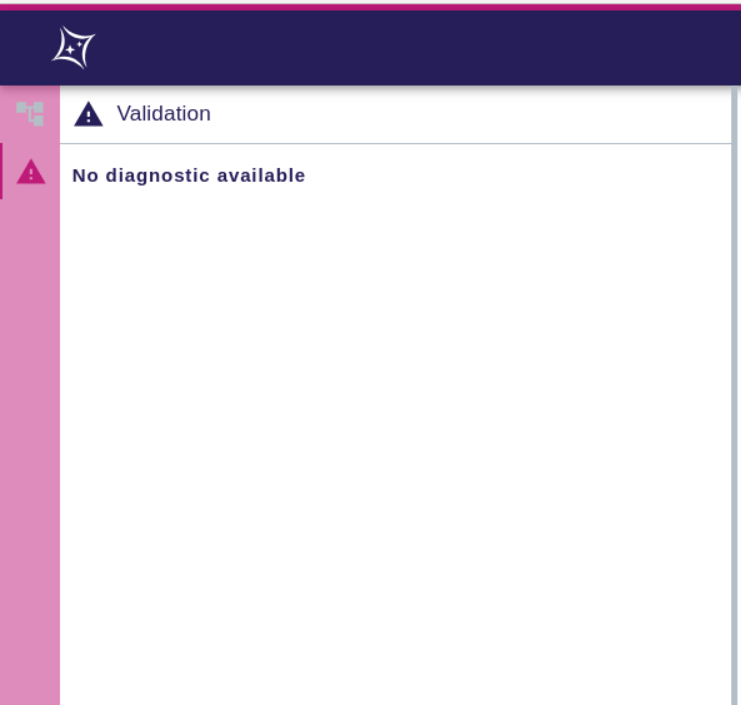
Validation: review validation results, warnings, or errors detected in the project.
|
The left panel always shows information at the project level, not the currently selected element. |
You can open a new workbench view by clicking on its icon in the panel toolbar.
|
|
2.3. Editor
The main area is where you edit models and representations. Each item you open appears as a tab, letting you keep multiple diagrams, forms, or tables available at once. You can open as many tabs as you need and switch between them without leaving the editor.
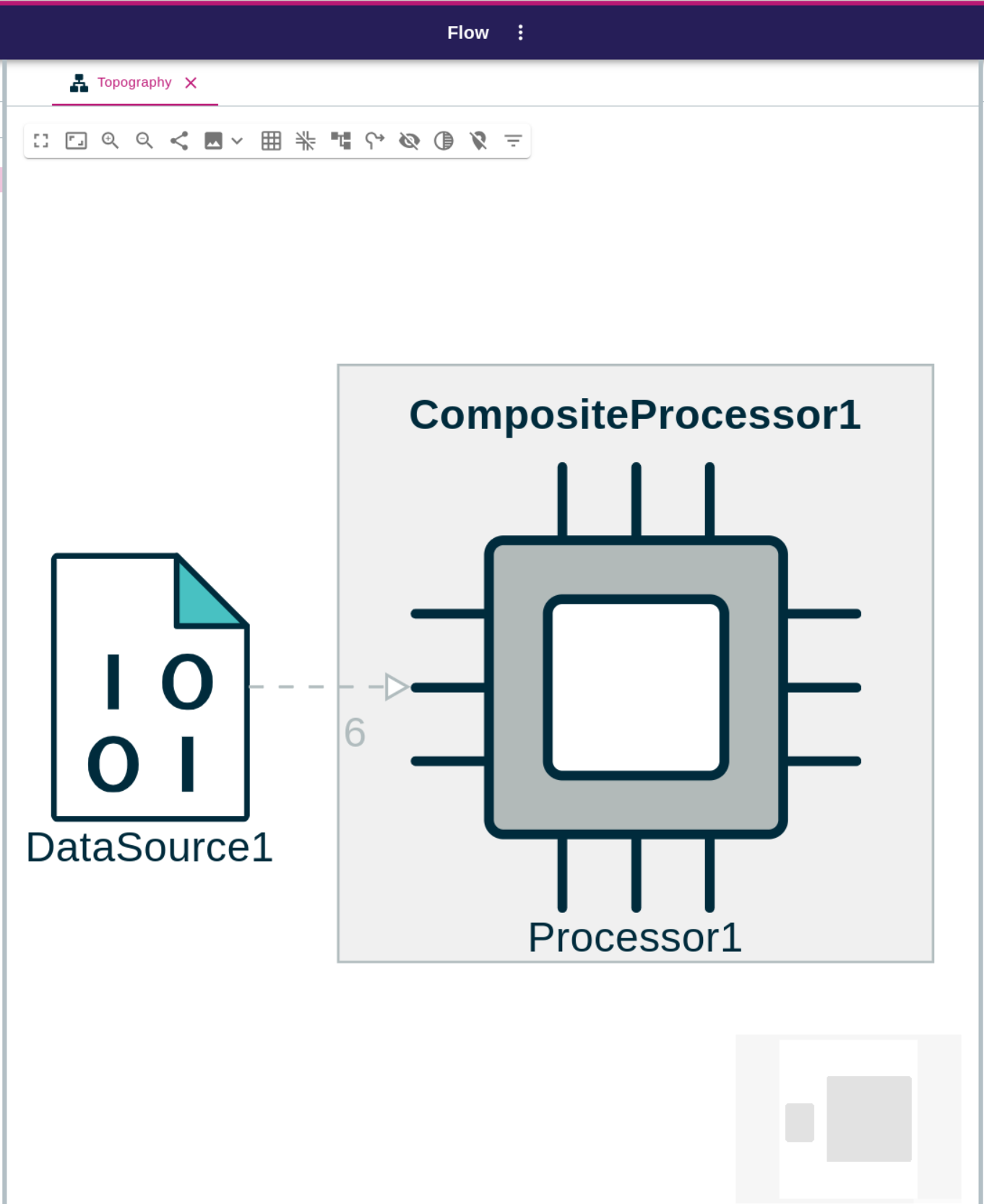
Discover the diverse range of representation options available and find the most suitable ones for your specific modeling needs.
2.4. Right panel
The right panel displays information related to the current selection in the editor. It can contain different views, each providing a specific perspective on the selected element:
-
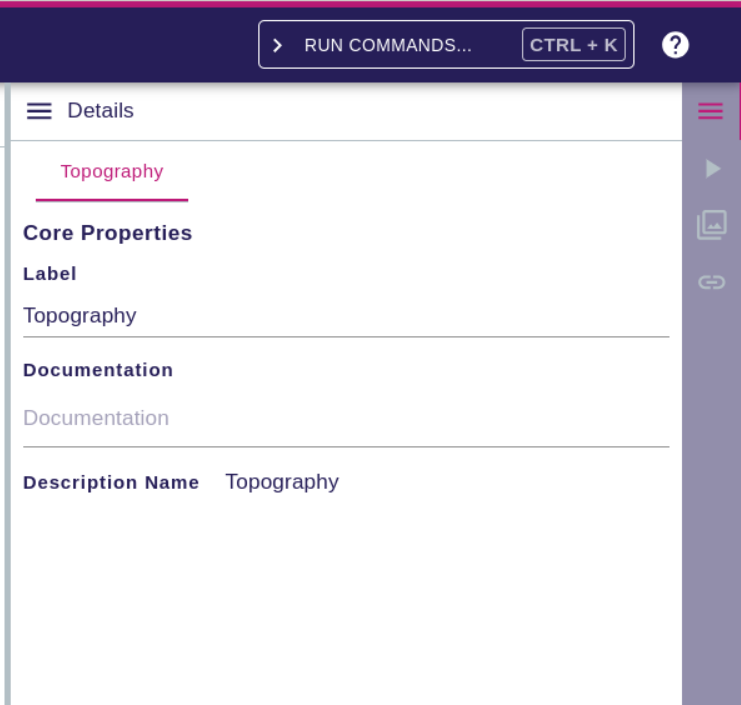
Details: shows and edits the properties of the selected element.
-
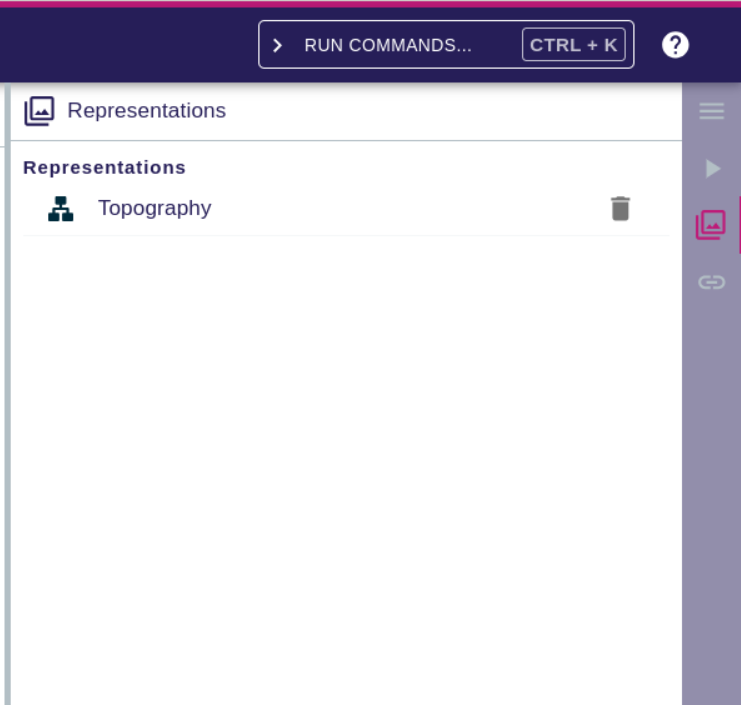
Representations: lists the available diagrams, forms, or other views related to the element.
-
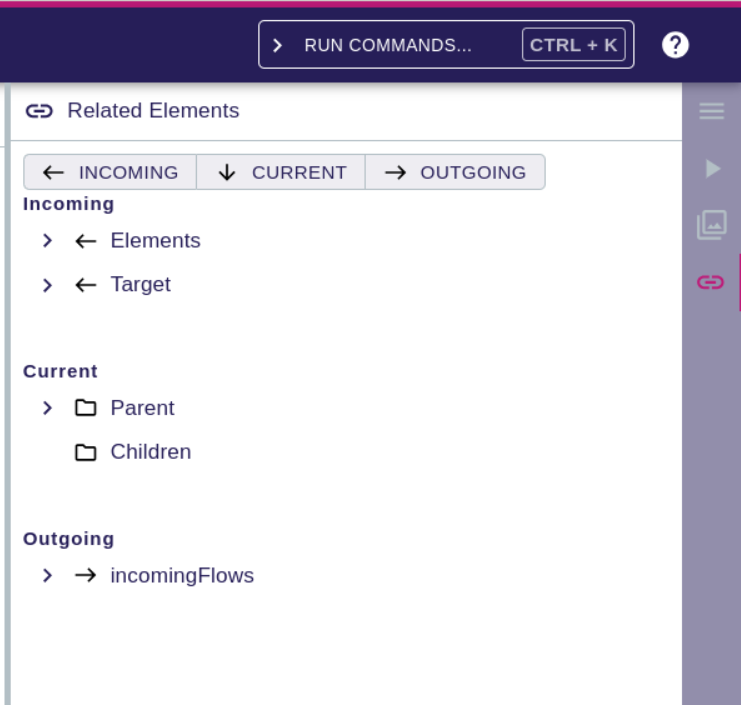
Related Elements: shows links and relationships with other elements in the model.
-
Query View: allows running custom queries on the model.
|
The content of the right panel changes dynamically depending on the current selection. |
The panel can be toggled by clicking its icon in the editor toolbar.
|
|
|