Representation operations
1. Create a new representation
To create a representation, follow these steps:
-
Open the Explorer Contextual Menu next to an element in the explorer.
-
Select the
New representationaction. -
Complete the representation name.
-
Choose the representation type.
-
Click the
Createbutton.
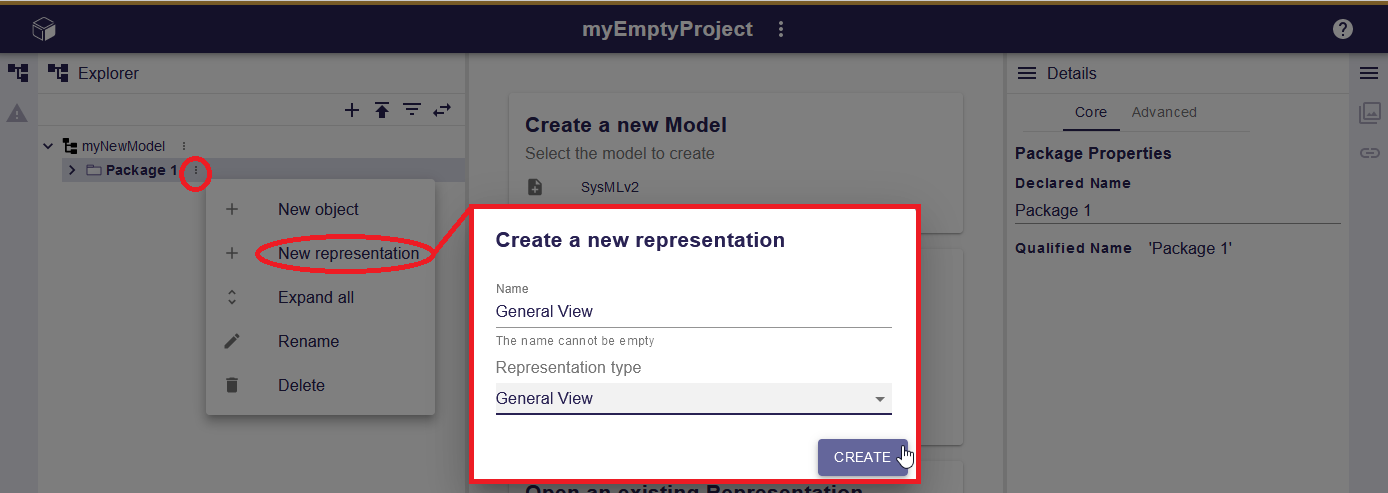
Upon creation, the new representation automatically opens and appears in the Explorer View under the element.
2. Delete a representation
It’s possible to delete a representation either from the Explorer View or the Representations View.
|
This operation is irreversible, once done there is no mean to get the representation back. |
|
The semantic elements visible in a representation won’t be deleted. |
2.1. From the Explorer View
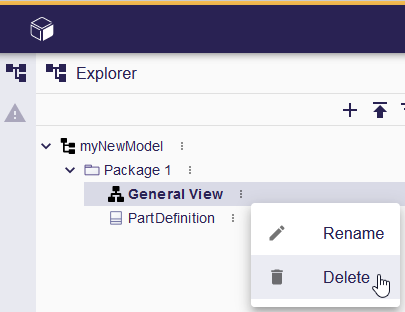
You can delete a representation from the Explorer View:
-
Open the Explorer Contextual Menu next to the representation.
-
Click on
Delete.
2.2. From the Representations View
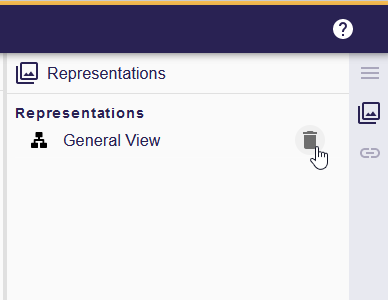
You can delete a representation from the Representations View:
-
Open the Representations View.
-
Select the representation you want to delete.
-
Click the
Deletebutton.
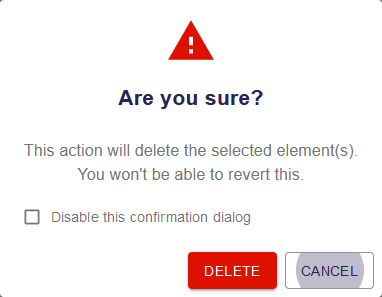
A confirmation dialog appears when a representation is deleted. This behavior can be disabled by checking the "Disable this confirmation dialog" checkbox in the dialog.
|
This preference is stored in the local storage of the browser. You can reset it using the settings page of the project or by clearing the Sirius Web data in the local storage of your browser. |
3. Rename a representation
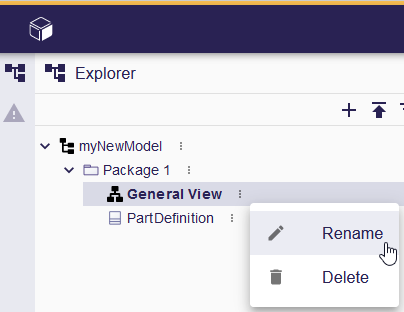
You can update the representation name from the Explorer View:
-
Click the Explorer Contextual Menu next to the representation in the Explorer View.
-
Select the
Renameoption. -
Update the name in the editable field.
-
Click
Rename.
4. Share a representation
Facilitating collaboration through representation sharing within Sirius Web is a straightforward process. Users can effortlessly share a representation by providing its URL to collaborators. Given that everything within Sirius Web is inherently public, recipients can seamlessly access and view the representation once the URL is shared. This simplicity in sharing promotes efficient collaboration and simplifies the communication of representation details, eliminating the need for complex sharing procedures.
4.1. From the Workbench
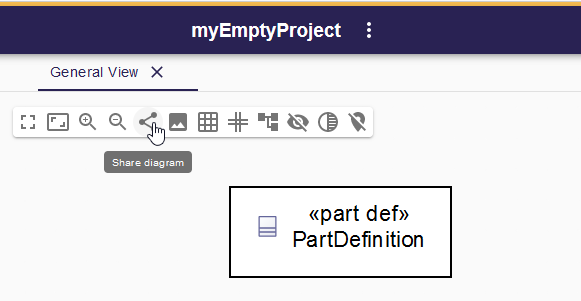
To share a representation in Sirius Web, follow these steps:
-
Open the a representation from the explorer.
-
Click the
Sharebutton in the general toolbar at the top of the representation area. -
Copy the link to your clipboard.
Anyone can use the shared link to directly access this specific representation.