User Interface Navigation
1. Access Explorer View / Validation View from the left panel
To seamlessly switch between the Explorer view and the Validation view in the left panel of Sirius Web, use the following steps:
-
Locate the vertical bar with icons on the left side of the interface.
-
Identify the icons corresponding to the
ExplorerandValidationviews. -
Click on the
Explorericon to open or close the Explorer view or click on theValidationicon to open or close the Validation view.
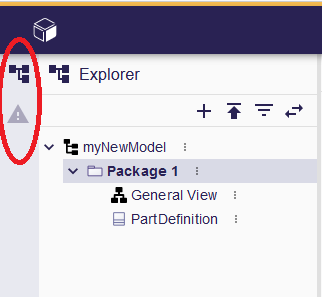
|
By clicking on the respective icons, you can easily toggle between the Explorer and Validation views, allowing you to navigate through project elements and examine validation results with convenience. |
|
The panel can be toggled by clicking on the icon of the active view. |
2. Access Details View / Query View / Representations View / Related Elements View from the right panel
To seamlessly switch between the Details, the Representations and the Related Elements views in the right panel of Sirius Web, use the following steps:
-
Locate the vertical bar with icons on the right side of the interface.
-
Identify the icons corresponding to the desired view.
-
Click on the icon to open or close the view.
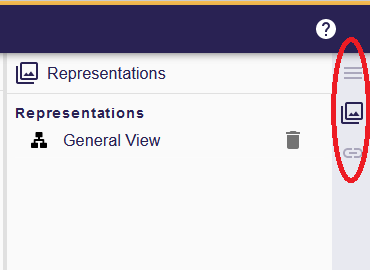
|
By clicking on the respective icons, you can easily toggle between the views, allowing you to navigate through element properties, representations attached to the element or related semantic elements with convenience. |
|
The panel can be toggled by clicking on the icon of the active view. |