Explorer View
1. Expand all
|
This operation may take a considerable amount of time for projects with a massive hierarchy and a high number of children. Exercise caution when performing this action in such scenarios. |
Explore the hierarchy of children for any element in the Explorer View:
-
Open the Explorer Contextual Menu of any element with children.
-
Click
Expand all.
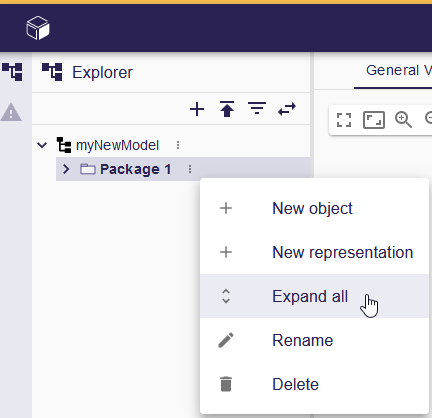
This action expands the selected element and all its children recursively, offering a detailed view of the hierarchical structure.
2. Filter elements in the Explorer View
2.1. Filter based on the label
To filter elements in the Explorer View using the filter bar:
-
Choose a tree item in the Explorer View.
-
Press
Ctrl+f(Windows/Linux) orCmd+f(MacOS) to enable the filter bar. -
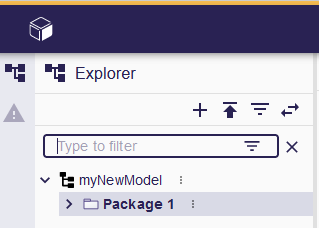
Enter a value in the filter bar.
-
All visible tree items containing the typed value are highlighted.
-
Use the filter button inside the filter bar to hide all visible tree items that don’t contain the entered value.
This capability allows for precise filtering and highlighting of elements based on specified criteria.
|
The filter bar can only highlight items in the expanded state; it doesn’t search within unexpanded children. Ensure the desired tree items are expanded to effectively use the filter and highlight capability. |
2.2. Custom filters
Custom filters may be contributed by studio makers to filter elements based on complex rules:
-
Hide specific elements,
-
Hide Libraries
-
…
These filters allow to clear the Explorer View. By hiding the technical elements, only the data directly exploited by the user are displayed, which make the model more readable in the Explorer View.
To filter elements in the Explorer View by their kind using the filter tool:
-
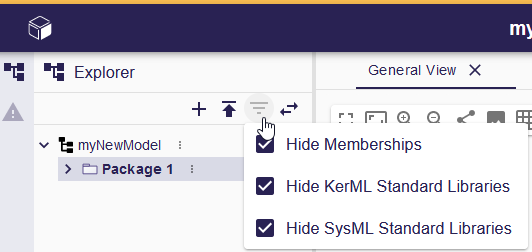
Click filter button,
-
Select filters to activate.