Project Browser
🔥 This feature is currently considered experimental. Try it out and give feedback by reporting bugs and suggesting new features. It’s not recommended for production use.
👥 This feature is available to all users.
1. What’s the Project Browser?
The Project Browser page serves as the pivotal starting point for your modeling endeavors and is the homepage of the Sirius Web application. It offers a central hub where users can seamlessly create new projects or manage existing ones.
2. Find your way around
For newcomers to Sirius Web, the initial experience of opening the application might seem a bit overwhelming. To assist you in navigating and initiating collaboration with your team, we offer a guided tour to help you acclimate to the platform.
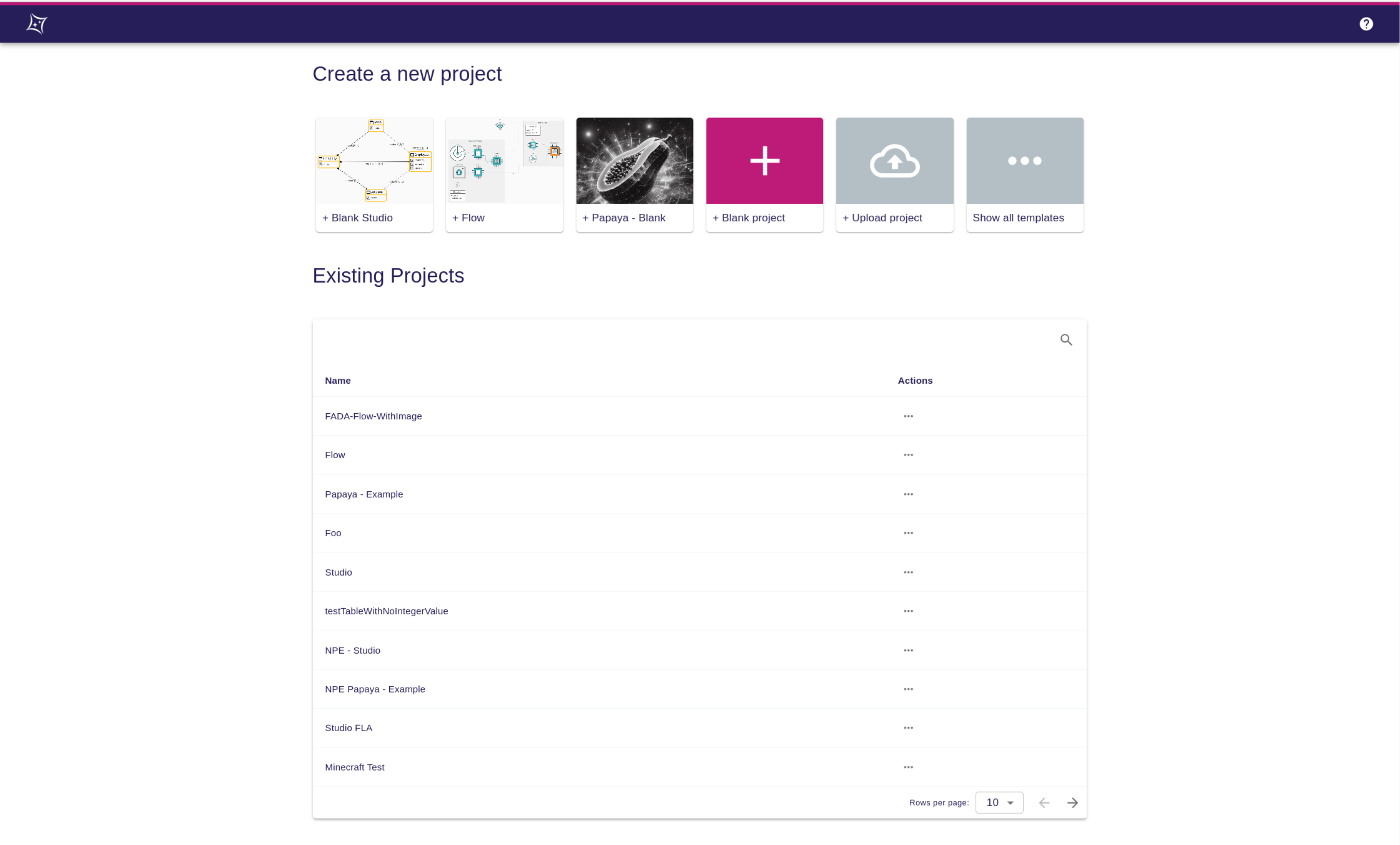
The homepage features three distinct regions: a Toolbar, a Create a New Project section, and an Existing Projects section. We’ve streamlined the layout to offer a clear understanding of the content housed in each location.
2.1. Toolbar
The toolbar consists of two groups, each featuring a single action: Homepage and Help.
-
Homepage: The Homepage action, visible on all pages of the application, provides a convenient way to navigate back to the Project Browser, serving as the application’s main homepage.
-
Help: The Help action, accessible on every page of the application, offers a convenient pathway to navigate to the online help resources for Sirius Web.
Derivative product can use that place to add extra information or actions.

2.1.1. Homepage
The Homepage action, visible on all pages of the application, provides a convenient way to navigate back to the Homepage.
2.1.2. Help
The Help action, accessible on every page of the application, offers a convenient pathway to navigate to the online help resources for Sirius Web.
2.2. Create a New Project
The Create New Project section is designed to allow users to initiate the creation of a new project.
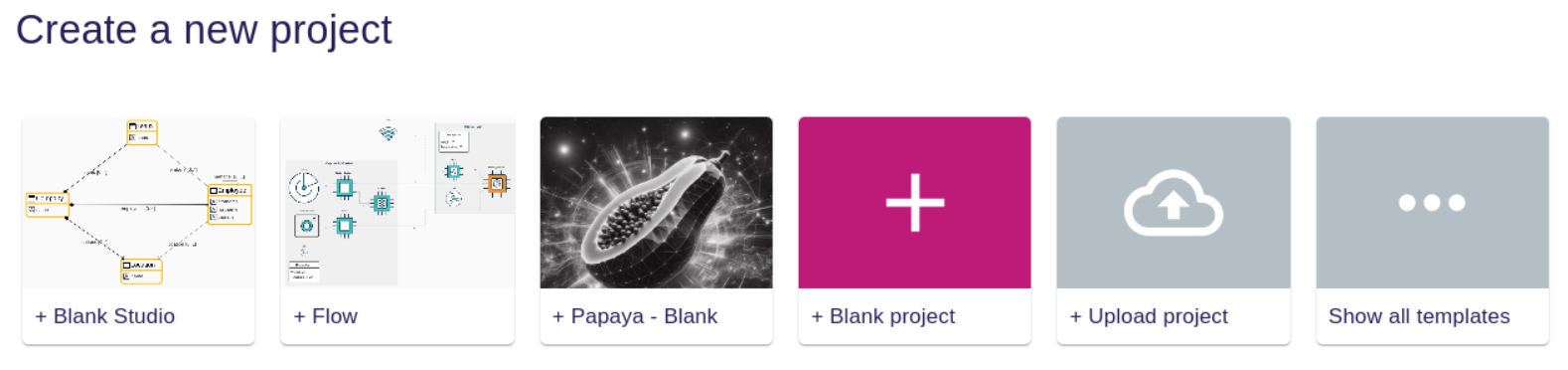
Within the platform, initiating a new project is a user-friendly process that accommodates various preferences:
-
Create a Blank Project: Users can start their modeling journey with an empty project, building a project from the ground up. With blank project, there is no model and no representation at creation.
-
Create a Project from Existing Templates: For efficiency and consistency, users can select from predefined templates that streamline project initiation, aligning with common modeling scenarios. The 3 first possible templates are displayed unitary at the beginning of Project sections and they’re also available in "Show all templates" section. For now, there exist three available DSL templates : Studio, Flow and Papaya.
-
Upload a Previously Exported Project: Facilitating collaboration and workflow continuity, users can effortlessly upload a project previously exported, ensuring seamless transitions and flexibility in collaboration.
|
Every project you create have its own Project Workbench. |
Explore further by referring to the following how-tos for creating blank projects, generating projects from templates, or uploading existing ones.
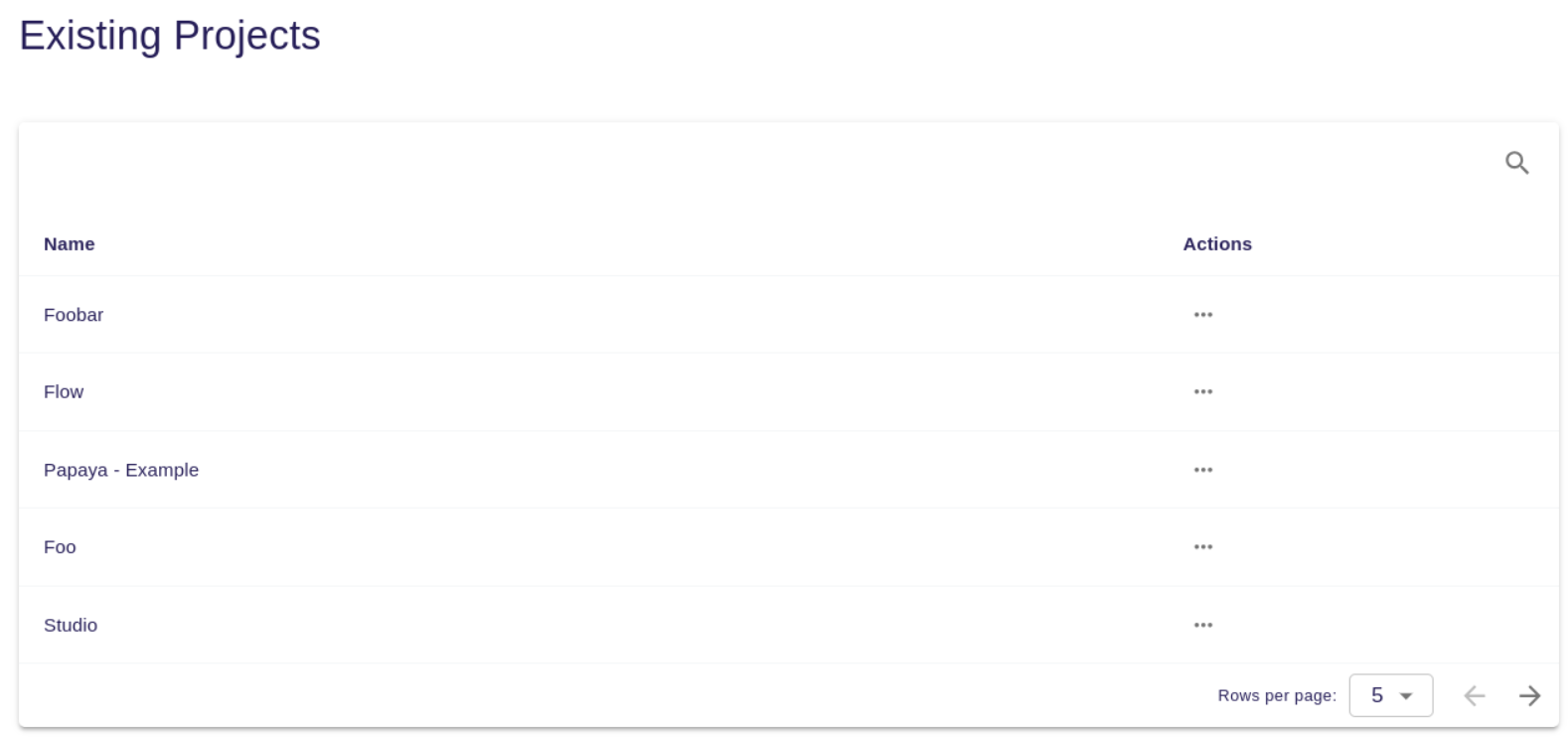
2.3. Existing Projects
The Existing Projects section streamlines project navigation, allowing users to effortlessly browse through their available projects.