Install Sirius Web for production
Follow these instructions to install a production-ready version of the application. This setup is intended for deployment in a live environment, with full multi-user access and all necessary security configurations.
1. Get Sirius Web
|
Stable versions
Only |
2. Prepare ecosystem
Pay attention to deploying enterprise-grade version of the prerequisites, including the database service. Before manually deploying the database, it’s recommend to use a managed database instance, either provided by the organization’s IT service or through cloud services.
Before you proceed with the installation, confirm you have following the prerequisites
It’s recommended to provide a dedicated host, such as a server or virtual machine, to serve the Sirius Web application, and no other services.
This step provides the following configuration elements :
-
database hostname
-
database port
-
database name
-
database username
-
database password
2.1. Plan for production operations
For enterprise deployments, complement this guide with operational practices:
-
Ensure high availability by running the application on managed infrastructure (Kubernetes, AWS Elastic Beanstalk, Azure App Service, etc.) and monitoring health checks.
-
Centralize logging and metrics so you can observe performance and diagnose issues.
-
Keep TLS certificates up to date and rotate credentials regularly.
-
Document your backup and disaster-recovery strategy—database snapshots plus off-site storage are recommended.
3. Installing Sirius Web Manually
Sirius Web is distributed as a single executable Java Archive JAR which has the complete Sirius Web application along with all its dependencies.
This distribution simplifies the setup process, enabling convenient exploration of Sirius Web’s features.
To download the latest pre-built JAR for Sirius Web, follow these steps:
-
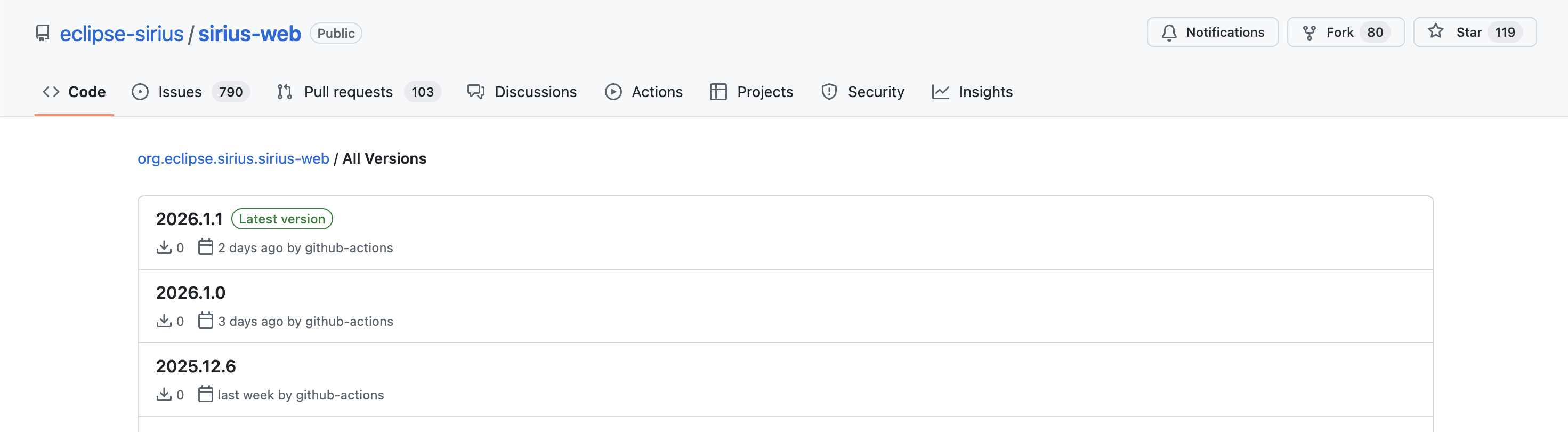
Before you begin the installation process, navigate to the download page for
sirius-web-YYYY.M.X.jarto access all versions. -
Identify the Sirius Web latest stable version for download.
-
Click the latest version to open its specific page.
-
In the
Assetssection, locate the JAR file namedsirius-web-YYYY.M.X.jar.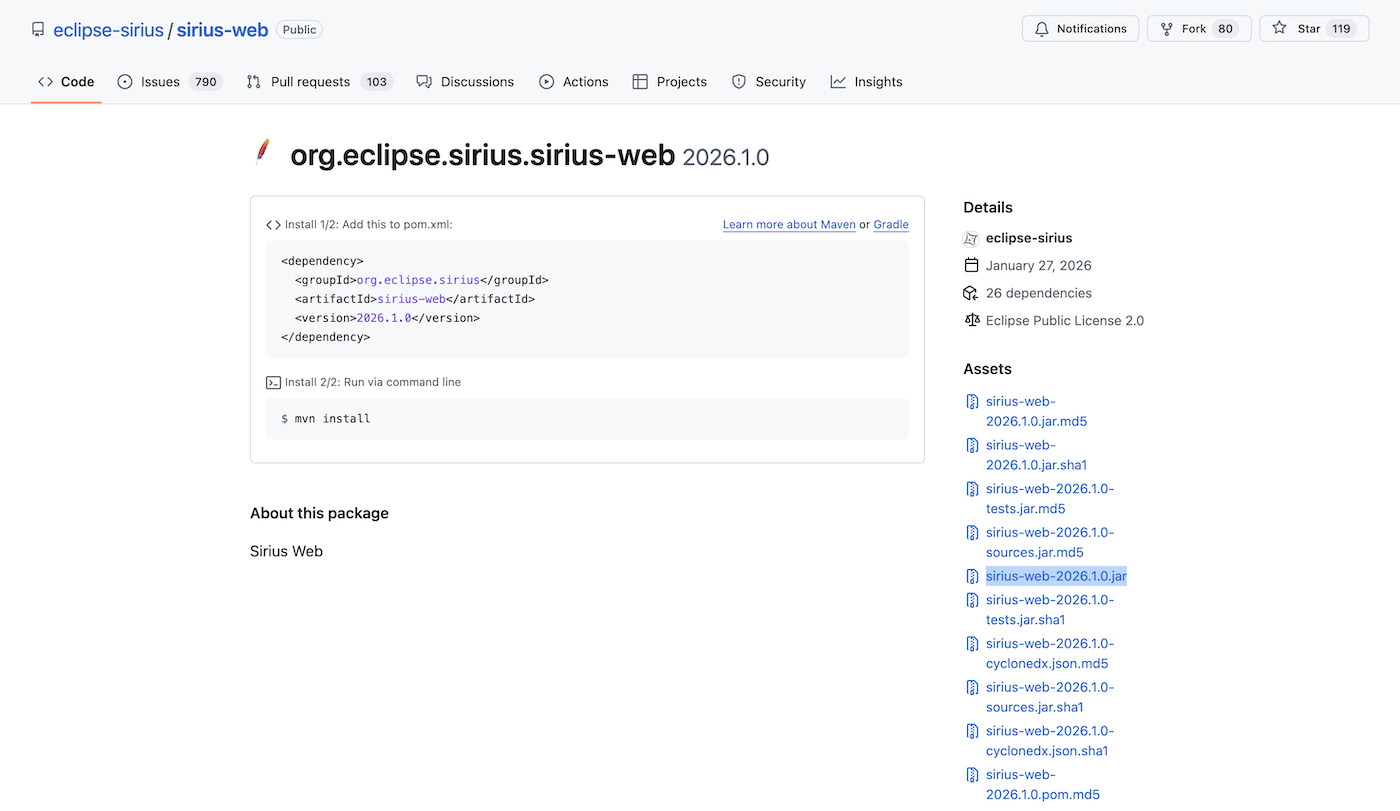
-
Click the JAR file to start the download to your local machine.
This process ensures that you get the most recent version of the Sirius Web application in the form of a pre-built JAR file.
4. Secure the application
As explain on this guide, the Sirius Web application must be secured to ba available on a network. For a production grade deployment, certificates used to secure the connection must be valid and provided by a valid authority.
Documentation to generate this kind of certificate is provided by dedicated organization, such as Namecheap.
The certification authority requires producing a PKCS12 keystore.
This step provides the following configuration elements:
-
keystore path
-
keystore password
-
private key password
-
certificate alias name
5. Start the application
To run the application, you’ll need to use the Java Runtime Environment (JRE) to run the pre-build JAR, sirius-web-YYYY.M.X.jar downloaded earlier.
Go to the folder containing the sirius-web-YYYY.M.X.jar and run the command:
java -jar sirius-web-YYY.M.X.jar \
  \
  --spring.datasource.url=jdbc:postgresql://databaseHost:5432/databaseName \
  --spring.datasource.username=databaseUsername \
  --spring.datasource.password=databasePassword \
    \
  --server.ssl.key-store=path/to/your/keystore.p12 \
  --server.ssl.key-store-password=keyStorePassword \
  --server.ssl.key-store-type=PKCS12 \
  --server.ssl.key-alias=server \
  --server.ssl.key-password=privateKeyPassword \
    \
  --server.port=443
6. Open your web browser
Navigate to https://<serverIP>:443 to experience Sirius Web.
If you meet any issues during the installation process, see the troubleshooting guide for detailed solutions.