Tree
🔥 This feature is currently considered experimental. Try it out and give feedback by reporting bugs and suggesting new features. It’s not recommended for production use.
👥 This feature is available to all users.
The Tree representation in Sirius Web displays model elements in a hierarchical structure, much like a file explorer or an outline view.
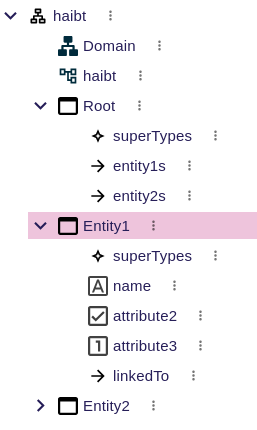
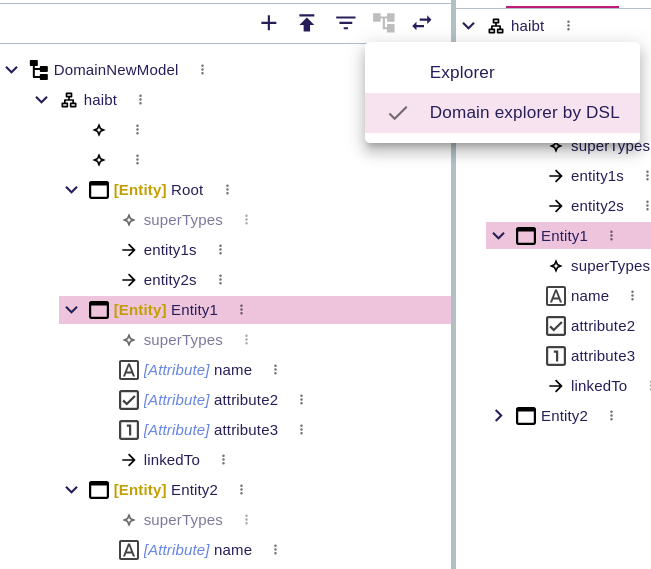
This view is particularly useful for navigating nested elements and understanding the parent-child relationships within a model.
1. What You Can Do
In a tree representation, you can:
-
Expand or collapse branches to explore nested structures
-
Select elements to view or edit them in a form, diagram, or another representation
-
Click to access contextual actions such as creating, editing, or deleting elements
-
Reorganize the hierarchy (when allowed by the representation description)
The tree provides a compact and structured way to visualize your data, making it ideal for managing hierarchical models such as system breakdowns, component structures, functional trees, or requirement hierarchies.
2. When to Use It
Use the tree representation when:
-
You want to browse through hierarchical relationships between elements
-
You need to find and open a specific element in a complex structure
-
A graphical layout would be too space-consuming or hard to read
-
You’re working with models that follow nested or parent-child structures
Trees are often used alongside other representations like diagrams or forms to provide a consistent and navigable entry point into the model.
3. Example
In a systems engineering model, the tree might be used to display a breakdown of system components, like:
-
System
-
Subsystem A
-
Component A1
-
Component A2
-
-
Subsystem B
-
Component B1
-
-
Clicking on a component in the tree can open a form to edit its properties or a diagram to view its structure.