Portal
🔥 This feature is currently considered experimental. Try it out and give feedback by reporting bugs and suggesting new features. It’s not recommended for production use.
👥 This feature is available to all users.
The Portal in Sirius Web acts as a customizable dashboard for your project. It provides a structured, high-level overview of the model and can serve as a dashboard to guide users toward important areas or actions.
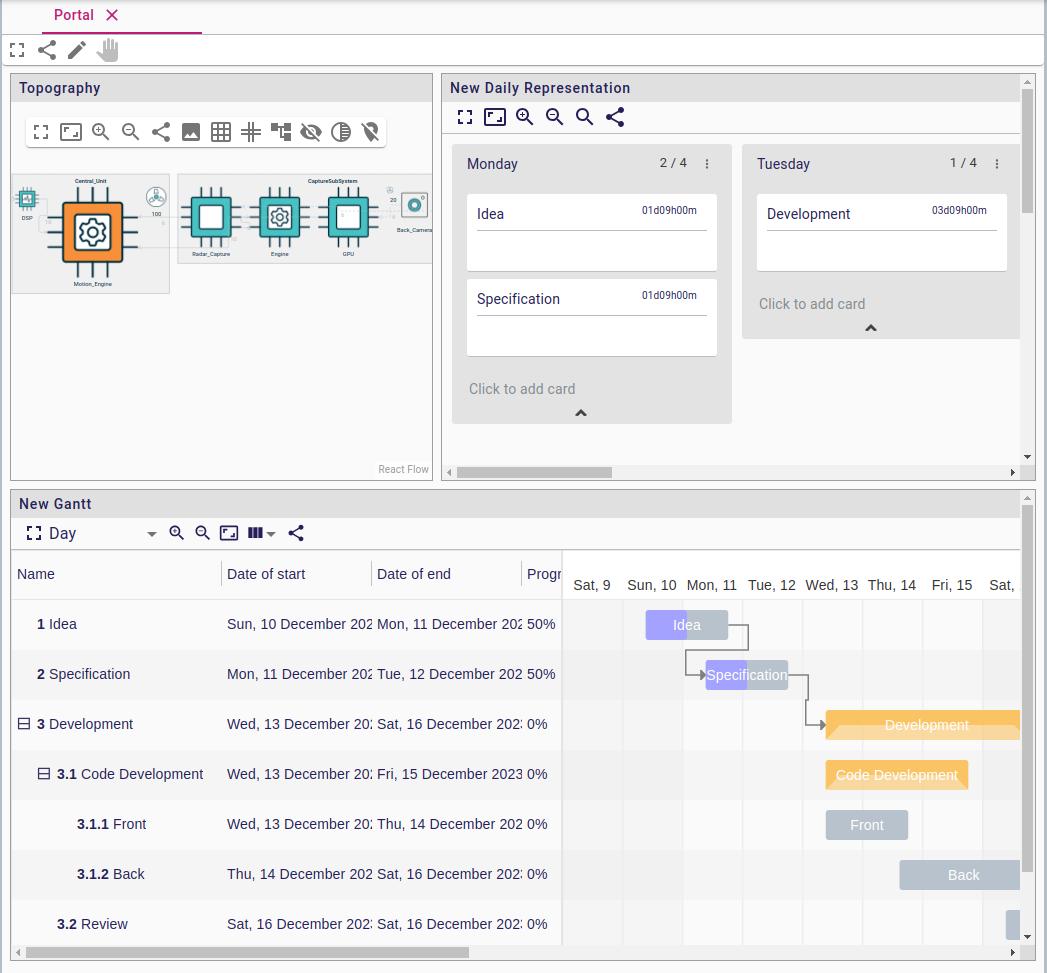
Each portal can be edited to show multiple existing representations, such as diagrams, forms, Gantt, and more.
1. What You Can Do
In a portal representation, you can:
-
View high-level summaries of your project or system
-
Access important elements or representations directly
-
Navigate to frequently used forms, diagrams, tables, or trees
2. When to Use It
Use the portal representation when:
-
You want a guided entry point into the model
-
You need quick access to key representations or data
-
You’re unfamiliar with the structure and want to orient yourself
-
The project defines a custom workflow and you want to follow the suggested steps
Portals are ideal for simplifying onboarding, standardizing modeling processes, or surfacing key actions for users in complex projects.
3. Example
In a project context, a portal might display:
-
A summary of key metrics or the project status
-
The system diagram
-
A form to create a new subsystem
This gives users a structured, user-friendly overview to help them get started quickly and navigate the model with confidence.
4. Creating and configuring a portal
If portals are enabled on your instance (default), any user can create one:
-
In the Explorer View, right-click a semantic element and select New representation.
-
Choose Portal as the type, give it a name, and confirm.
-
The portal opens in portal edition mode so you can add representations immediately.
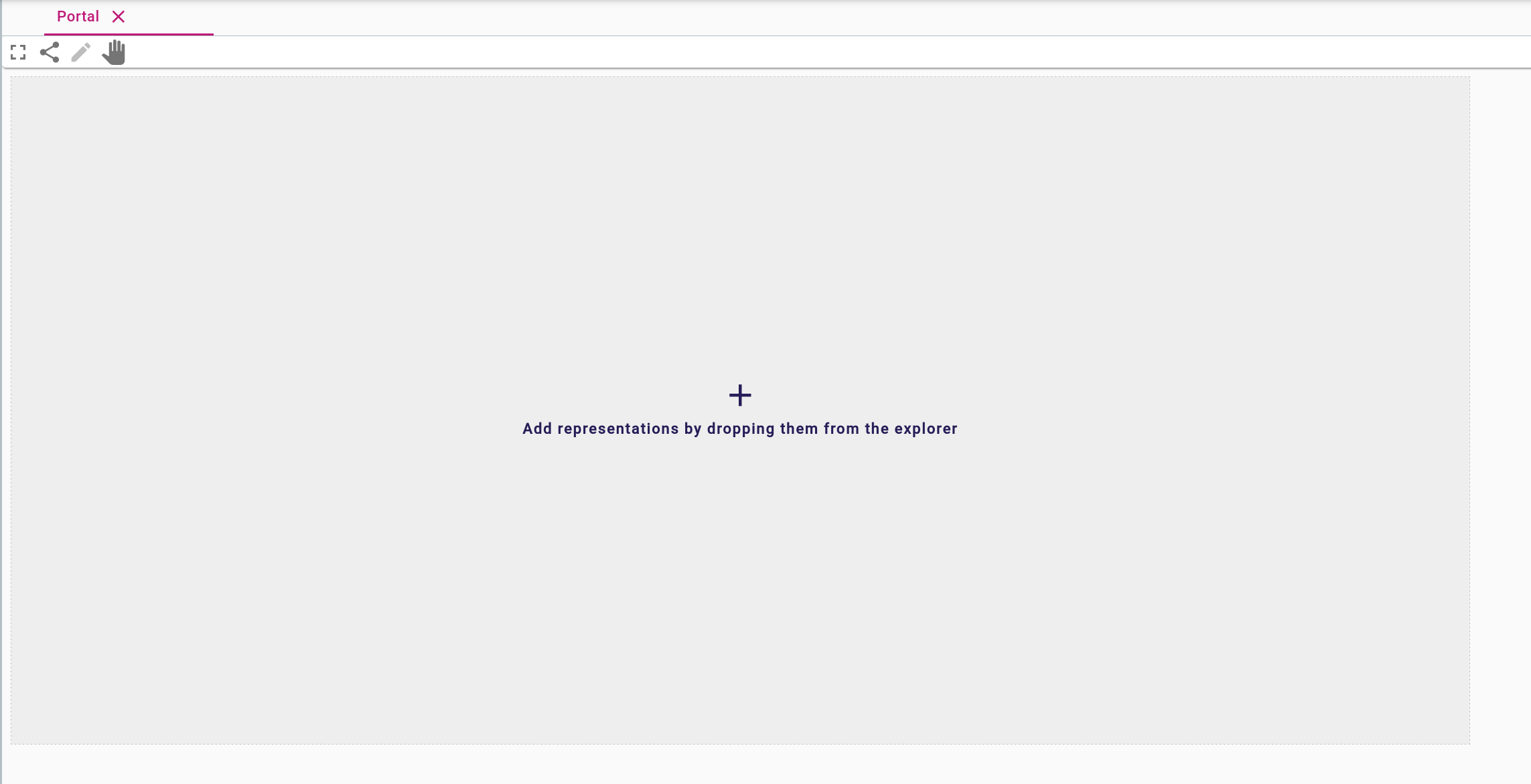
An empty portal looks like this:
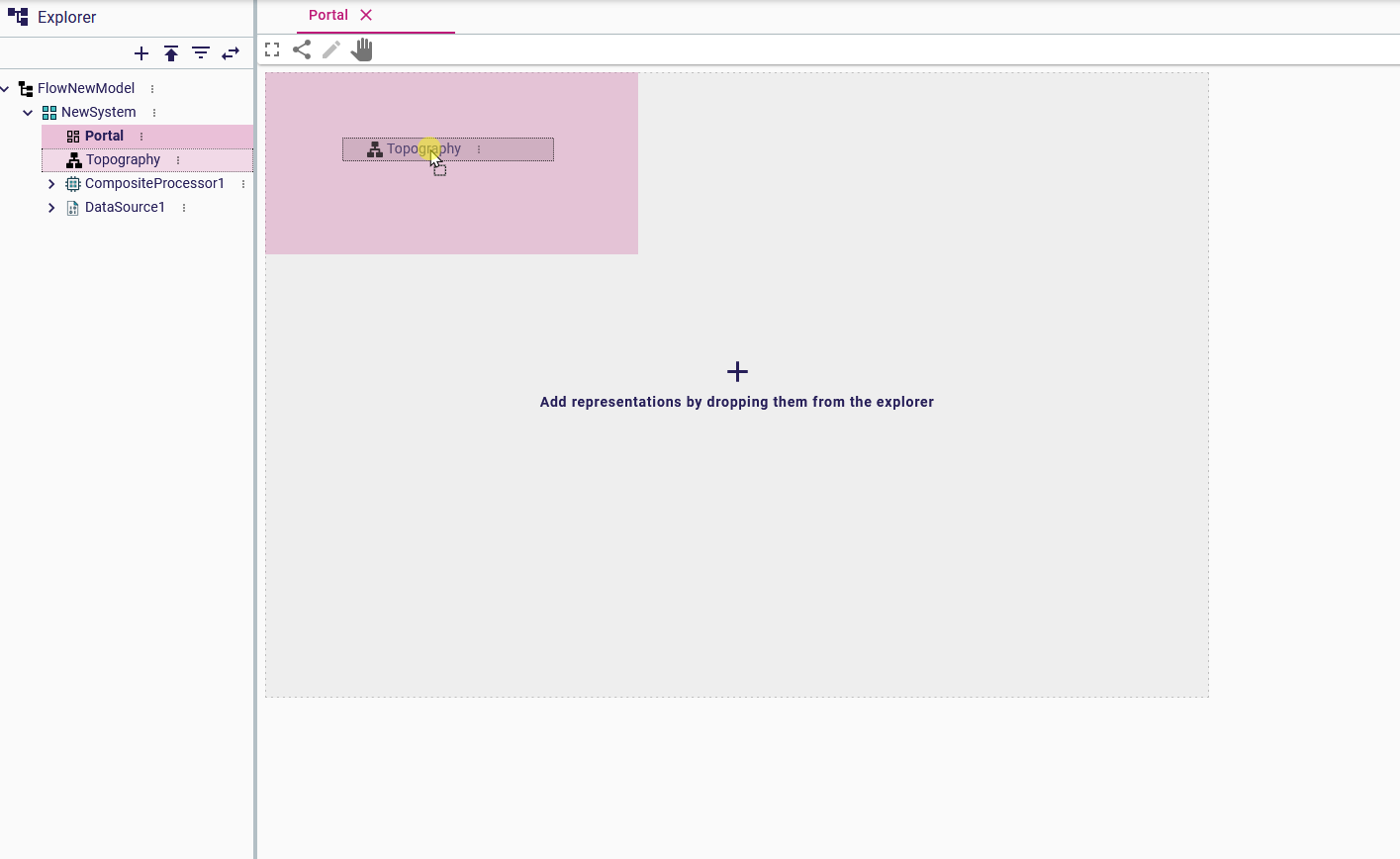
Drag any existing representation from the Explorer View onto the portal canvas to embed it:
You can move, resize, or remove embedded representations while the portal is in edition mode:
![Add]](../_images/representations/portal-add.png)
5. Edition mode vs representation mode
A portal operates in two modes:
-
Portal edition mode (pen icon): configure the layout, add/remove representations, move frames.
-
Representation edition mode (hand icon): interact normally with the embedded representations while the layout stays fixed.
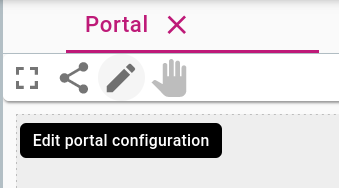
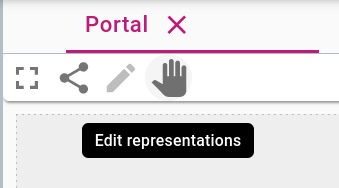
Use the toolbar buttons to switch modes at any time. A newly created or empty portal always starts in edition mode.
6. Portal toolbar
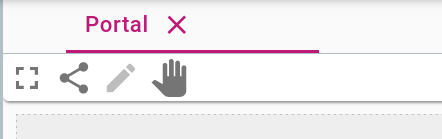
From left to right:
-
Full-screen toggle.
-
Share link.
-
Switch to portal edition mode.
-
Switch to representation edition mode.