Table
🔥 This feature is currently considered experimental. Try it out and give feedback by reporting bugs and suggesting new features. It’s not recommended for production use.
👥 This feature is available to all users.
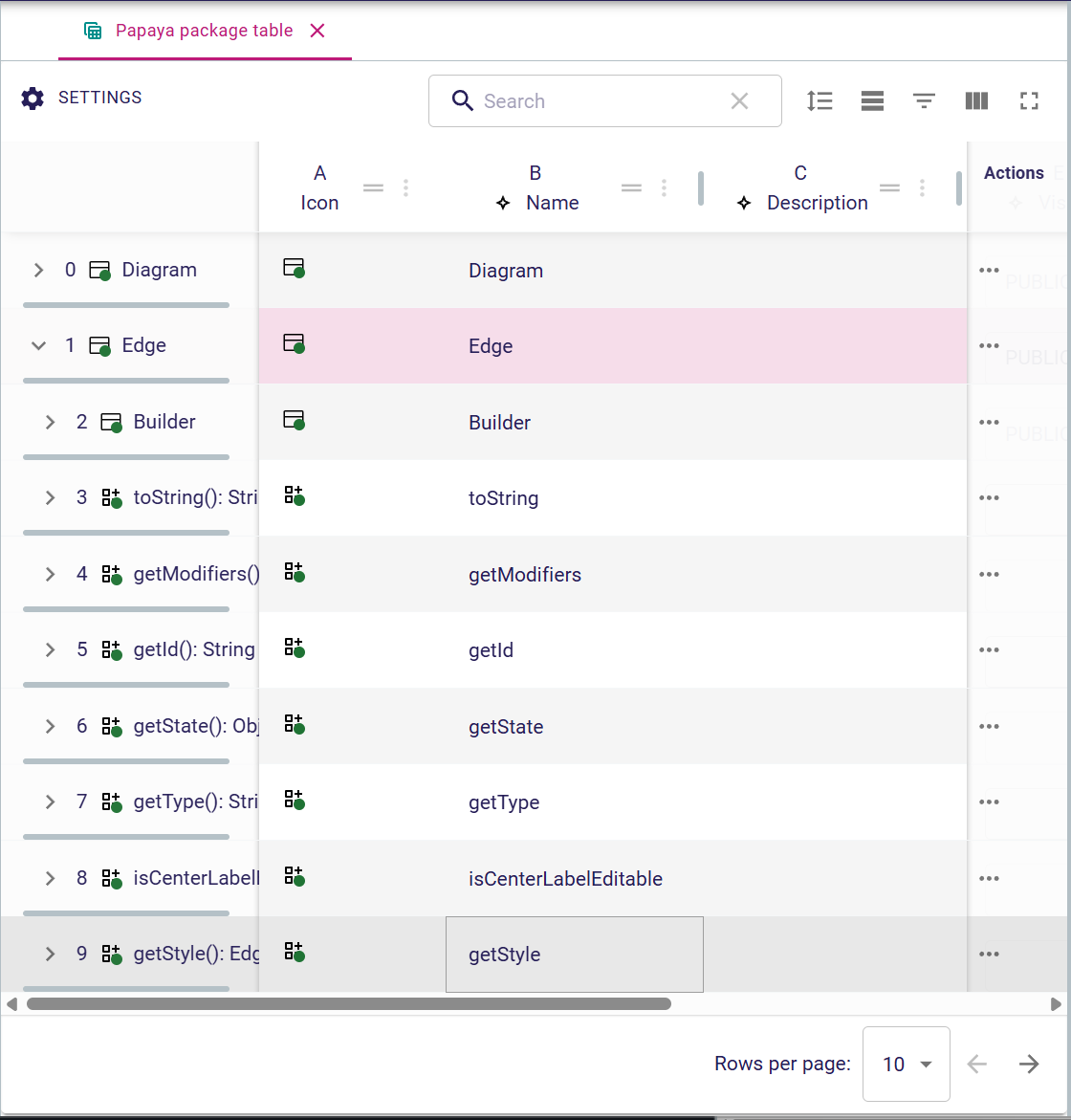
The Table representation in Sirius Web offers a tabular view of your model. It lists elements as rows and exposes their properties as columns, making it easier to compare values, edit attributes inline, or capture structured information.
Tables display rows and columns that have been predefined for you, including which properties appear, and which actions are available.
1. What You Can Do
-
Browse model elements line by line and sort columns to surface the information you need.
-
Inline-edit cells: click a value to type a new one, pick an entry from a drop-down, or toggle a checkbox.
-
Trigger custom actions directly from the table (e.g., duplicate or delete a row).
-
Expand hierarchical rows when the representation description exposes nested data, such as subcomponents or related elements.
-
Apply filters to highlight rows that match a value or expression, helping you focus on a subset of the data.
2. When to Use It
Use a table representation when:
-
You need to edit many elements quickly without opening each one in a form.
-
Comparing attributes side by side is more efficient than navigating a diagram.
-
The data is inherently tabular (think requirements, configurations, or reference lists).
-
You want to export or copy values easily—for example, to share with stakeholders.
3. Columns and actions
Columns can display text, numbers, booleans, enumerations, or computed values defined with AQL expressions. Depending on how the table was configured, you may also:
-
Enable sorting by particular columns.
-
Pin columns on the left or right so that important attributes remain visible while you scroll horizontally.
-
Hide columns you do not need (and restore them later); column visibility is persistent per table.
3.1. Toolbars and menus
The top toolbar groups global actions:

-
Settings menu (CSV export, etc.).
-
Global filter textfield which searches across every textual cell.
-
Reset row height to return manually resized rows to their default.
-
Row filters menu (switches for domain-specific filters provided by the specifier).
-
Toggle column filters to show or hide the per-column filter row.
-
Column management menu to reorder, pin, and toggle column visibility.
-
Full screen toggle and sharing tools, common to other representations.
Each column header also exposes a menu for column-specific operations:
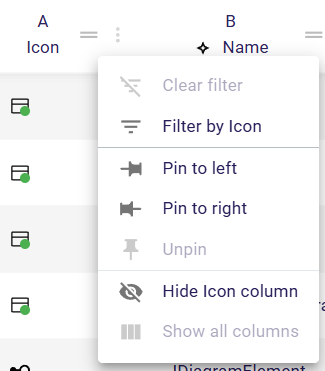
Use it to clear/apply the filter, pin it left/right, hide it, or show all columns again.
The column management dialog is handy when many columns are available:
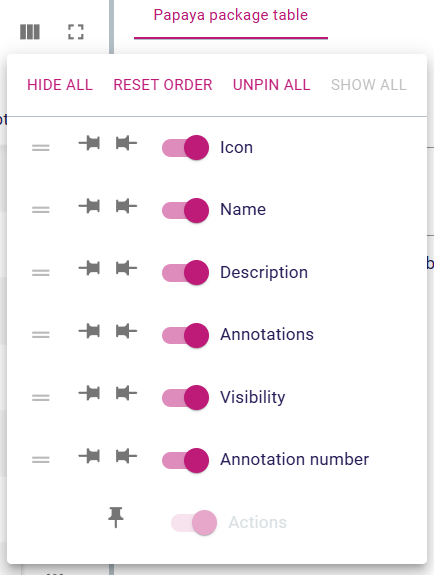
Drag handles to reorder columns, use the pin icons to keep key information on screen, and toggle the switch to hide/display each column.
3.2. Pagination
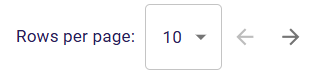
Large tables are paginated automatically. Use the bottom toolbar to switch pages or change the page size (5/10/20/50 rows):
3.3. Selection and editing
Click a row header to select the underlying semantic element and synchronize other views such as the Explorer View or the Details View:
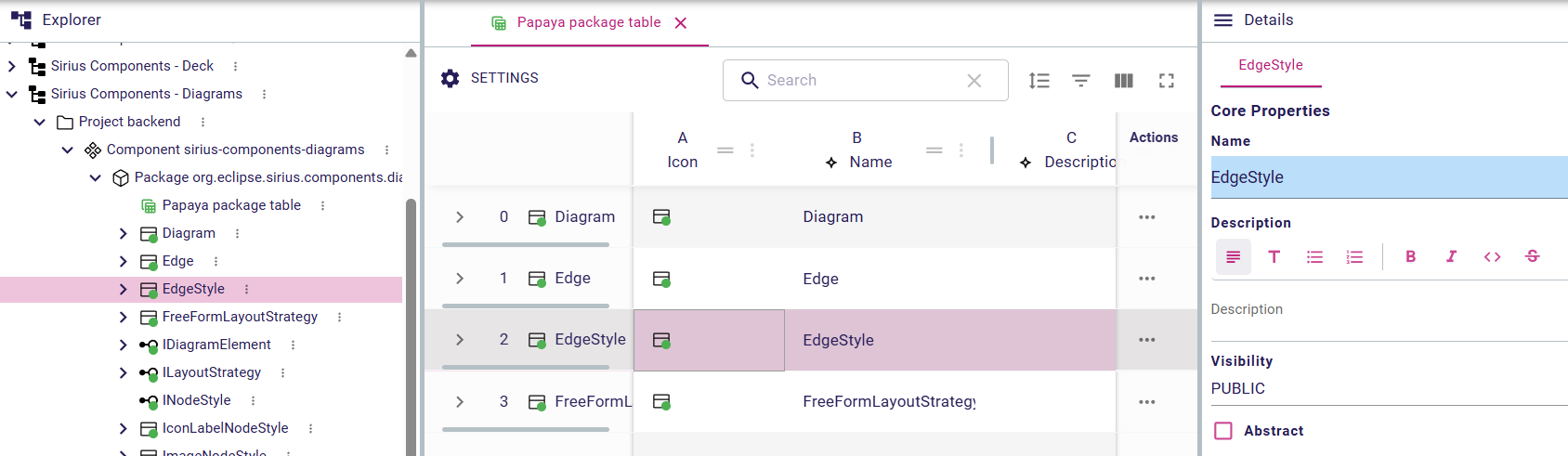
Editable cells switch to their widget when you click them (for example text fields, text areas, combos). Press Tab to move to the next editable cell or Shift+Tab to go backwards.
3.4. Filtering data
Tables provide several ways to focus on the data you need:
-
Global filter: searches all textual content in visible columns.
-
Column filter: restricts rows based on a specific column’s value.
-
Row filters: domain-specific toggles defined in the representation.
-
Hierarchy: collapse or expand rows to focus on the relevant subtree.
Column filters stack together, so only the rows that satisfy every active filter remain visible.
3.5. Row actions
The right-most column usually contains a context menu that triggers domain-specific commands on that row:
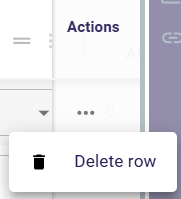
Examples include duplicate, delete, or whatever the specifier configured for this table.
4. Example
In a relational database table, the description could be configured to display the following content:
-
Each row represents a database table.
-
Columns display the name, the number of columns (
aql:self.ownedTableElements→size()), and ownership metadata. -
Palette actions let you create a new table element or remove an existing one.
This layout gives stakeholders an overview of the schema while enabling them to add or adjust structures rapidly.
|
Tables in Sirius Web are not spreadsheets: they are configured by a studio maker to reflect and edit in a specific way the underlying model. Any inline change is immediately synchronized with other representations and shared with collaborators. |