Form
🔥 This feature is currently considered experimental. Try it out and give feedback by reporting bugs and suggesting new features. It’s not recommended for production use.
👥 This feature is available to all users.
Form-based editors in Sirius Web provide a simple and structured way to view and edit the details of model elements.
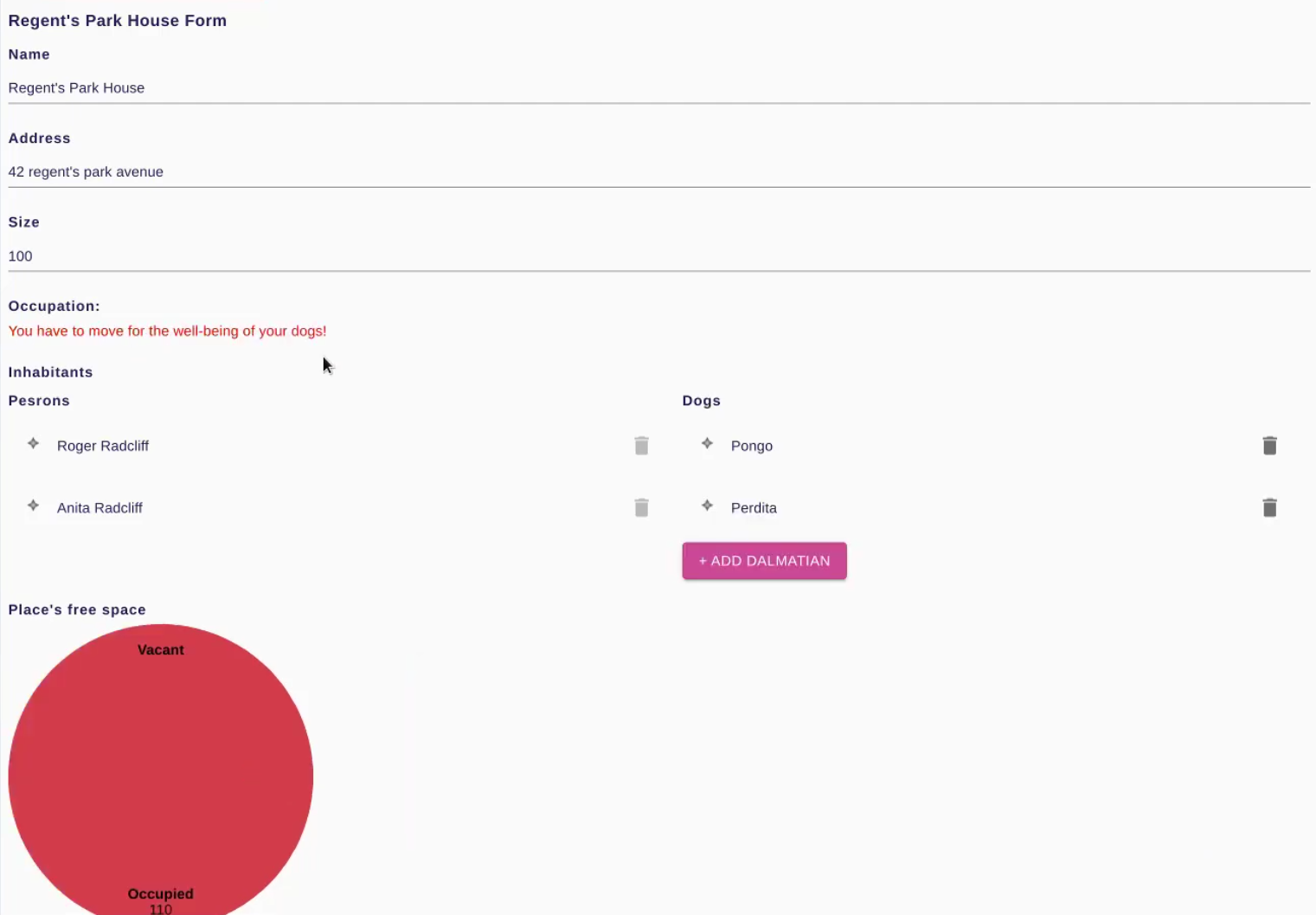
Instead of interacting with shapes in a diagram, you work through a form made up of fields and widgets—similar to a web form. This is especially useful when editing elements that have many properties or when diagrams are not the best way to capture information.
1. What You Can Do
-
View all the properties of a selected model element in one place.
-
Edit text fields, select values from dropdowns, or toggle checkboxes.
-
Add or remove related elements using action buttons (e.g., add a component, remove a dependency).
-
Navigate between related elements using clickable links.
2. When to Use It
Use the form-based editor when:
-
You need to focus on the details of one element.
-
The element has a lot of properties that would clutter a diagram.
-
The information is best captured in a structured or tabular way.
-
You want to perform quick data entry or corrections.
3. Example
For a Vehicle element, the form might include:
-
A text field for the name
-
A dropdown for the engine type
-
A checkbox for "is electric"
-
A table listing connected components or sub-parts
Changes made in the form are immediately applied to the model and can be reflected in diagrams or other representations.
3.1. Widget types
The form description determines which widgets appear. Typical categories include:
-
Basic widgets: single-line or multiline text fields, numbers, checkboxes, and radio buttons for straightforward attribute editing.
-
Advanced widgets: charts, and embedded tables that summarize related information without opening another representation.
-
Custom widgets: components that extend the base widget set—for example, domain-specific selectors or visualization widgets. When such widgets are available, they appear alongside the standard controls so you can interact with tailored UI elements.
The mix of widgets determines how rich the form feels: some forms emphasize quick data entry, while others provide dashboards with KPIs and visual cues.
|
The layout and available fields in the form depend on how the modeling environment has been configured. |